
How to use the Stream Vessel MCP server with Claude, ChatGPT, Cursor and VS Code
The Stream Vessel MCP server lets an AI assistant work with your S3 and S3-compatible storage. It can find files, read them, upload, copy, move and clean up, and it never sees your access keys. This guide covers connecting Claude, Claude Code, ChatGPT, Cursor or VS Code, choosing how much access to give, and keeping the agent safe and useful.
- Server URL:
https://mcp.streamvessel.com(remote MCP server over HTTP). -
Two ways to sign in: approve the app in your browser (OAuth), or paste a
personal token that starts with
svmcp_. - Three access levels: READ, WRITE and FULL. Only FULL can move or delete.
- Limits you set: an expiry of up to a year, and optionally only the connections, buckets and folders you choose.
- What the AI gets: 27 tools, 3 ready-made prompts, and an activity log of every call. Free on Stream Vessel Cloud.
1. Before you start
You need three things:
- A Stream Vessel Cloud account. Sign up free at app.streamvessel.com with Google, GitHub or an email address.
- At least one storage connection on that account. AWS S3, Cloudflare R2, Backblaze B2, Wasabi, DigitalOcean Spaces, MinIO, IDrive e2 or any other S3-compatible endpoint. The endpoint must be reachable from the internet, because tool calls run on Stream Vessel’s servers, not on your computer.
- An MCP client that can connect to a remote server over HTTP, such as Claude, Claude Code, ChatGPT, Cursor or VS Code.
Connections that you keep only on your device, in the Chrome extension without an account, are deliberately out of MCP’s reach: their keys never leave your browser. Connections shared with you by someone else are included.
2. OAuth or a token: which to choose
Both give the AI the same tools under the same rules. They differ in how the client proves who it is.
| OAuth (approve in the browser) | Personal token | |
|---|---|---|
| Setup | Paste the server URL, then click Approve on Stream Vessel. | Create a token, then paste a command or click an install button. |
| Secret to keep safe | None you handle. The client stores and refreshes its own access. | The token, shown once. Treat it like a password. |
| Best for | Claude and ChatGPT in the browser or desktop app, and anyone who prefers not to copy secrets. | Claude Code, Cursor and VS Code, scripts, CI jobs and clients without OAuth support. |
| Listed under | Connected apps | MCP tokens |
Either way you choose the access level, the expiry and where it works, and you can revoke it at any time.
3. Connect with OAuth
-
Add the server to your client as a remote MCP server with the URL
https://mcp.streamvessel.com. You do not need a token.- Claude (claude.ai and the desktop app): open Settings → Connectors, choose Add custom connector and paste the URL.
- ChatGPT: add it as a custom connector (MCP server) by its URL, where your ChatGPT plan and workspace allow custom connectors.
-
Claude Code: run the command below, then type
/mcpin Claude Code, choosestreamvesseland authenticate. - Cursor and VS Code: add a remote (HTTP) MCP server with the URL in the editor’s MCP settings; in VS Code, the MCP: Add Server command does this.
- An agent or client of your own: add the URL the same way. The first time it signs in, Stream Vessel shows the https address it asked to send you back to; if you set the client up yourself, type its host to trust that address for your account, and the sign-in carries on. You get an email, and you can remove the address under Trusted app addresses on the MCP page, which disconnects the client. Why it works this way.
- Sign in to Stream Vessel when your browser opens, if you are not signed in already.
- Check the consent screen. It names the app, says where approving sends you back to, and shows the account you are approving as. Pick the access level, the expiry and where it works, then click Approve.
- Return to your client. The tools appear there, ready to use.
claude mcp add --transport http streamvessel https://mcp.streamvessel.com
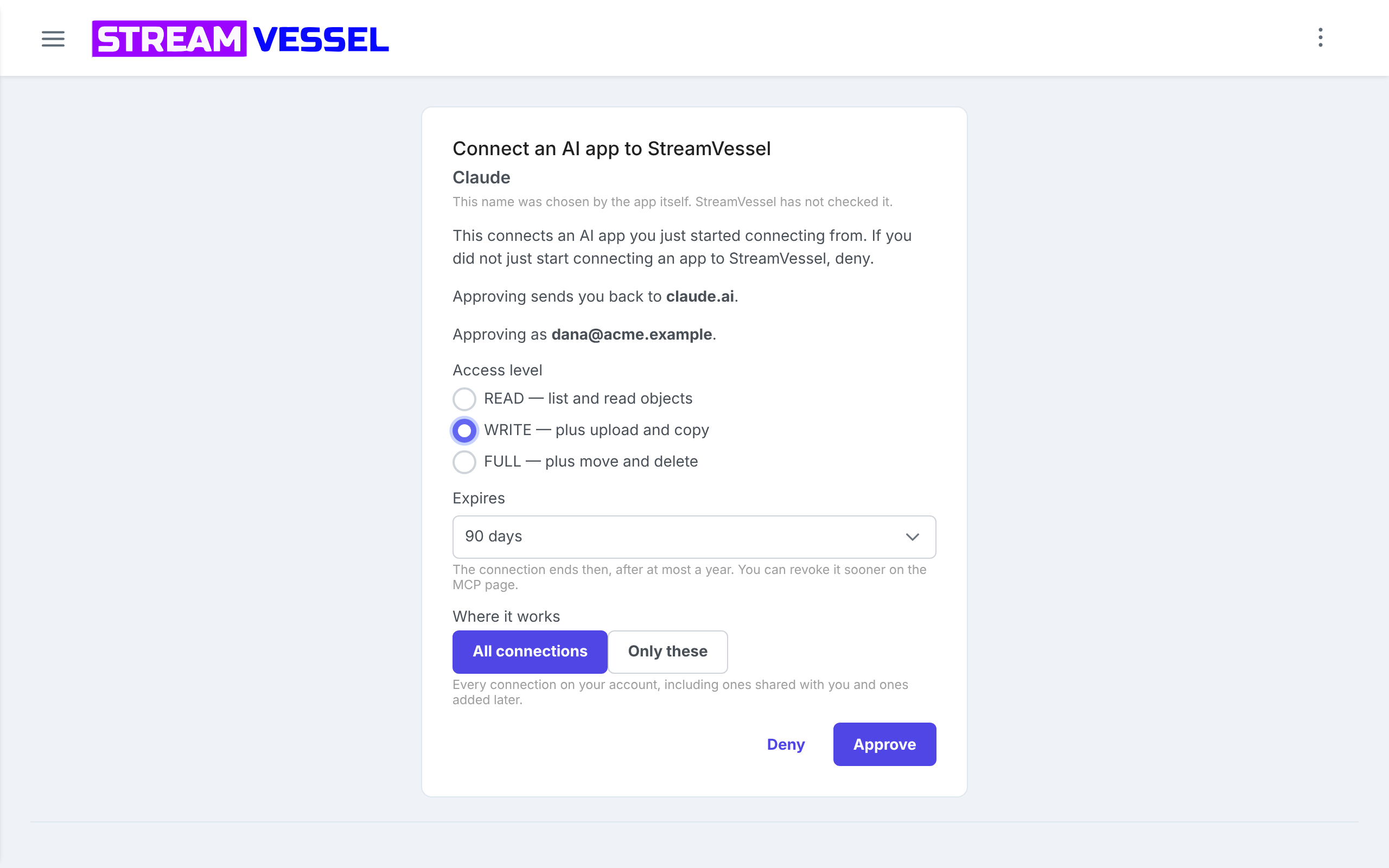
The app name on the consent screen is chosen by the app itself, and Stream Vessel has not checked it. Approve only a connection you just started yourself. If a link you did not expect opens this screen, click Deny. For a program on your own computer, such as Claude Code, the screen adds a warning that access goes to a local program; that is expected when you started the connection there.
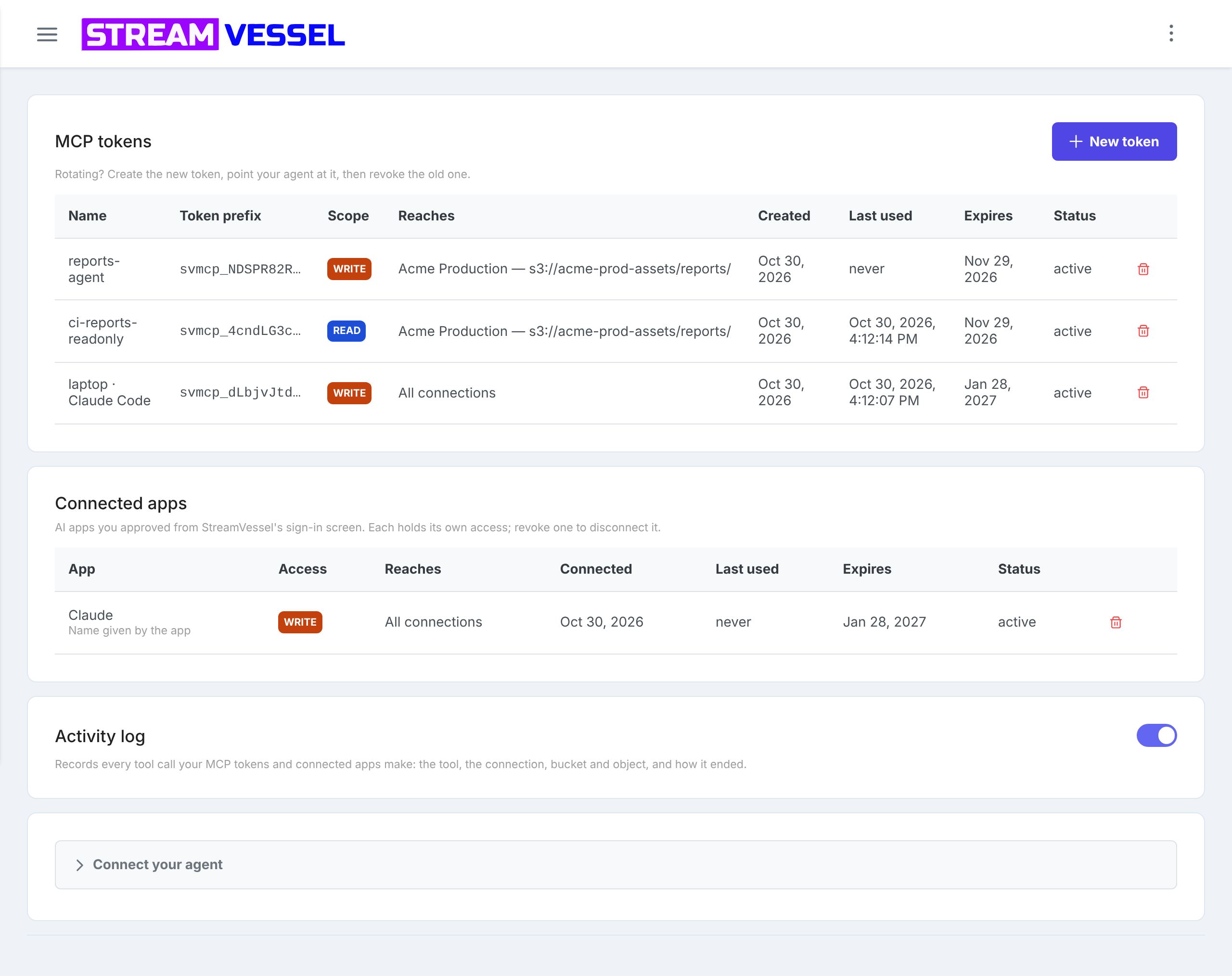
After you approve, the app appears under Connected apps on the MCP access page, with its access level, where it works, when it was last used and when it expires. The access ends on that date; after that, connect the app again.
4. Connect with a personal token
1. Open MCP access
In Stream Vessel Cloud, open the menu and choose Account → MCP access, or go straight to app.streamvessel.com/mcp.
2. Create a token
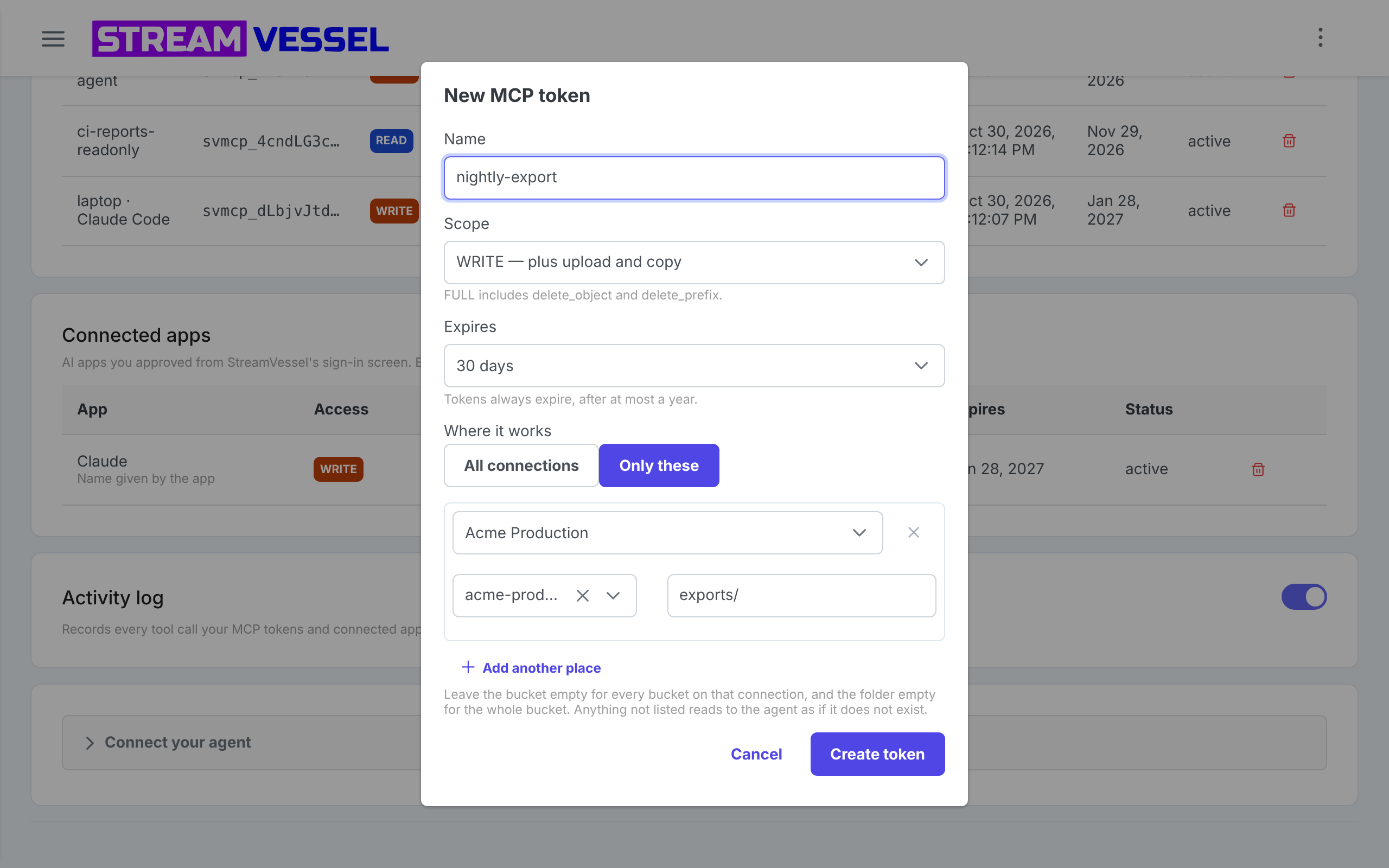
Click New token and fill in four fields:
-
Name. Say where the token will live, such as
laptop-claude-codeorci-reports-readonly. You will thank yourself when it is time to revoke one. - Scope. READ, WRITE or FULL. Start with READ; see access levels.
- Expires. 30 days, 90 days, 1 year or a custom date. Tokens always expire, after at most a year.
- Where it works. All connections, or Only these to pick a connection, a bucket and a folder.
3. Copy the token
Click Create token. The token is shown once: copy it now. Stream Vessel stores only a SHA-256 hash of it, so it cannot show the token again. If you lose it, create a new one and revoke the old one.
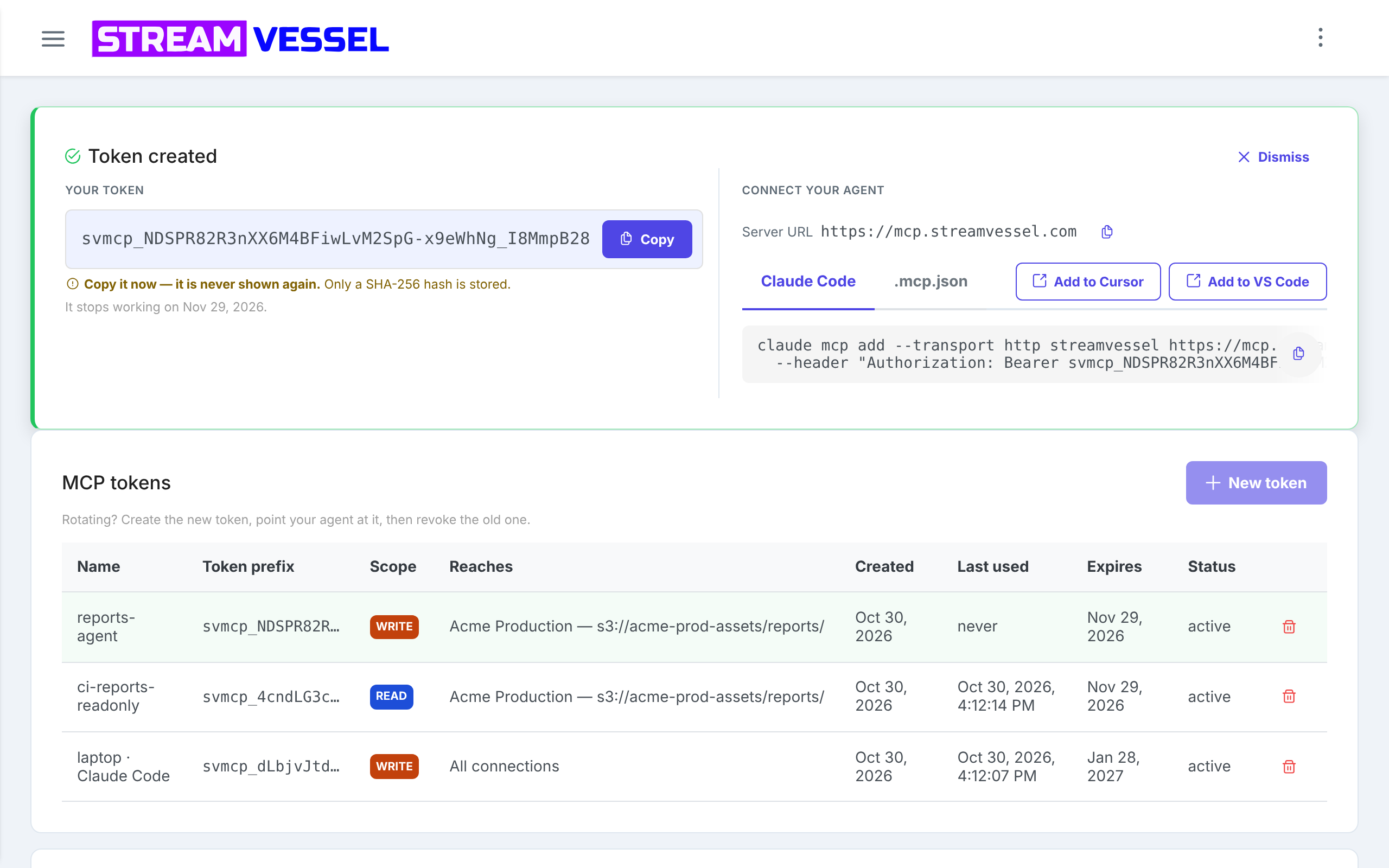
4. Add it to your client
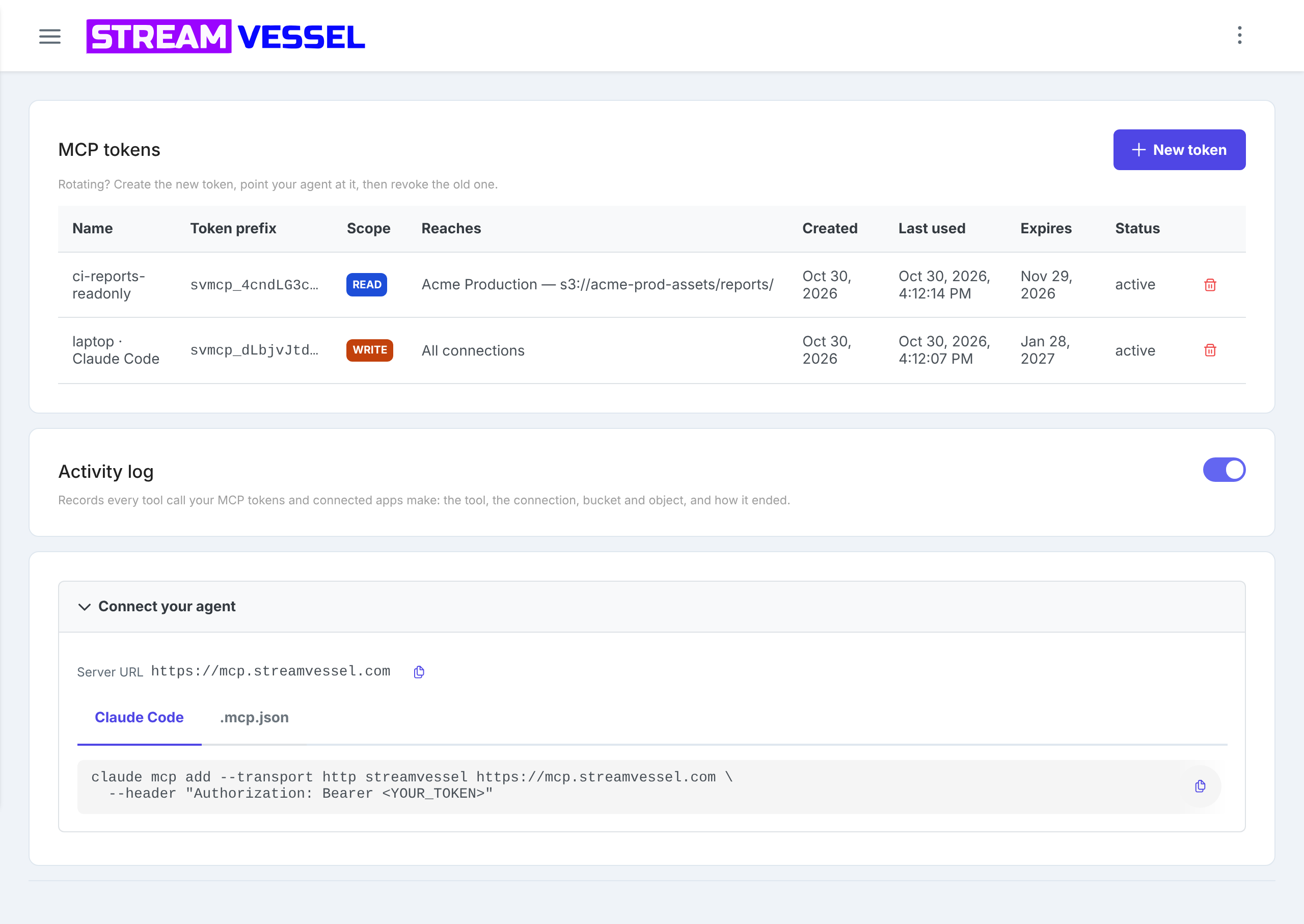
Claude Code. Copy the command from the Claude Code tab and run it in a terminal. It looks like this:
claude mcp add --transport http streamvessel https://mcp.streamvessel.com \ --header "Authorization: Bearer <YOUR_TOKEN>"
Cursor or VS Code. Click Add to Cursor or Add to VS Code next to the new token. The editor opens and offers to install the server, token included.
A project file. The .mcp.json tab gives a configuration that Claude Code reads from the root of a project. It reads the token from an environment variable, so the file is safe to commit:
{
"mcpServers": {
"streamvessel": {
"type": "http",
"url": "https://mcp.streamvessel.com",
"headers": {
"Authorization": "Bearer ${STREAMVESSEL_MCP_TOKEN}"
}
}
}
}
export STREAMVESSEL_MCP_TOKEN="svmcp_…"
Any other client. Configure a remote MCP server over HTTP with the URL
https://mcp.streamvessel.com and the header Authorization: Bearer <your token>.
5. Choose the access level and where it works
Access levels
Each token or app has one level, and each level includes everything below it.
| Level | The AI can | Typical use |
|---|---|---|
| READ | List, search, read, measure, check exposure and create download links. | Questions, summaries, reports, audits. |
| WRITE | Also write and upload files, copy objects and folders, edit metadata and manage multipart uploads. | Generating files, publishing reports, backups into a new folder. |
| FULL | Also move and delete objects and whole folders. | Reorganising and cleaning up, with you watching. |
Where it works
All connections covers every connection on your account, including ones shared with you and ones you add later. Only these limits the token or app to the places you list, up to 50 of them:
- a whole connection (leave the bucket empty),
- one bucket on it (leave the folder empty), or
- one folder in that bucket, such as
reports/.
Anything not listed looks to the AI as if it does not exist. A connection outside the list does not
even appear in list_connections. On a connection shared with you, the AI gets the lower
of its own level and the level you were given: a FULL token on a connection shared with you at READ
can only read there.
6. Your first conversation
Start by asking what the AI can see. It will call list_connections, which every other
tool depends on:
- “List my Stream Vessel connections and the buckets on each.”
Then try requests like these:
-
Find: “Find every CSV under
exports/2026/in acme-prod-assets and summarise their headers.” - Read: “Show me the last 50 lines of
logs/app.log.” -
Measure: “How much space does
backups/take, and what is the newest file in it?” -
Edit: “Read
config/app-settings.json, bump the version and write it back.” - Organise: “Copy last month’s reports into
archive/2026-09/.” - Share: “Give me a download link for the newest backup that expires in 30 minutes.”
- Secure: “Is the acme-media-archive bucket readable by the public?”
- Save money: “Find multipart uploads older than 7 days and show them to me before cancelling them.”
7. All 27 tools
Your client lists them under the name you gave the server. Each tool is marked as read-only or as one that changes data, and clients use those marks to decide when to ask you before running it. The AI only ever sees the tools; which ones succeed depends on the access level.
| Tool | What it does | Level |
|---|---|---|
list_connections |
Lists the storage connections the token can use, with the bucket path and permission of each. | READ |
list_buckets |
Lists the buckets on one connection. | READ |
list_objects |
Lists files and folders under a prefix, one level or recursively, a page at a time. | READ |
find_objects |
Finds objects by name at any depth with a glob (*.csv) or a regular expression. | READ |
stat_prefix |
Counts the objects and bytes under a folder, and names the newest and largest. | READ |
measure_bucket |
Totals the size of a bucket in bounded chunks. | READ |
get_object_metadata |
Size, content type and user metadata of one object, without reading it. | READ |
read_object |
Reads a text file; can return the first or last lines or a byte range of a large one. | READ |
create_download_link |
A short-lived pre-signed download URL. | READ |
create_download_links |
Short-lived pre-signed download URLs for up to 20 objects in one bucket per call. | READ |
list_multipart_uploads |
Finds unfinished multipart uploads, optionally only those older than N days. | READ |
check_bucket_exposure |
Checks whether an anonymous stranger can list or read a bucket. Only on connections you own. | READ |
write_object |
Writes a text file. Refuses to replace an existing one unless told to overwrite. | WRITE |
create_upload_link |
A short-lived pre-signed upload URL, for binary or large files. | WRITE |
set_object_metadata |
Adds, changes or removes user metadata entries, leaving the rest alone. | WRITE |
copy_object |
Copies one object within or between buckets. | WRITE |
copy_prefix |
Copies a whole folder to another folder. | WRITE |
start_multipart_upload |
Starts an upload in parts, for files over 5 GiB. | WRITE |
presign_upload_parts |
Pre-signed URLs for the parts of a multipart upload. | WRITE |
complete_multipart_upload |
Assembles the uploaded parts into the final object. | WRITE |
abort_multipart_upload |
Discards one unfinished upload and its billed parts. | WRITE |
abort_unfinished_uploads |
Discards a list of unfinished uploads at once. | WRITE |
move_object |
Moves or renames one object. | FULL |
move_prefix |
Moves a whole folder. | FULL |
delete_object |
Permanently deletes one object. | FULL |
delete_objects |
Permanently deletes up to 1,000 named objects in one call. | FULL |
delete_prefix |
Permanently deletes everything under a folder. | FULL |
8. Prompts and resources
Besides tools, the server offers three prompts: ready-made plans that the AI
carries out with the tools. Clients show them in their own way; in Claude Code they are slash
commands such as /mcp__streamvessel__safe_cleanup.
- audit_prefix: measures and describes what sits under a folder, changing nothing.
- summarise_bucket: describes what a bucket holds and how its storage is spread, changing nothing.
- safe_cleanup: shows you what a folder holds and asks for your confirmation before deleting any of it. Use this instead of asking for a delete directly.
Each object is also available as a resource at
s3://{connection}/{bucket}/{key}, with the
key percent-encoded, for clients that let you attach a file from an MCP server.
9. Tips for working safely
- Give the least access that does the job. Use READ for questions and reports, WRITE when the AI must create files, and FULL only for a clean-up you are supervising.
- Use one token per agent or machine. Then revoking one does not break the others, and Last used tells you which one is active.
-
Limit it to a folder. An agent that writes reports needs
reports/, not your whole account. -
Remember there is no undo. Deletes and overwrites are permanent unless your
provider keeps object versions. Tools that could overwrite refuse to unless the AI passes
overwriteon purpose. -
Measure before you delete. Ask the AI to run
stat_prefixand show you the result first, or use thesafe_cleanupprompt. -
Mind the trailing slash.
logs/is the folder;logsalso matcheslogs-archive/. Folder tools ask for the slash. -
Ask for a search, not a crawl. “Find files named *invoice*” uses
find_objects, which is much faster than browsing folder by folder. -
Keep tokens out of git. Use the environment variable in
.mcp.jsonrather than pasting the token into the file. - Clean up abandoned uploads. Parts of an unfinished multipart upload are billed until removed. Ask the AI to list uploads older than a few days and cancel them; uploads started in the last 24 hours are protected unless you insist.
10. Limits worth knowing
The server keeps each answer small, because an AI rereads every tool result on every later turn of a conversation. Current limits:
| What | Limit | What happens instead |
|---|---|---|
| Reading a file | 64 KiB of text per answer | Larger or binary files come back as a download link; the AI can also read the first or last lines, or a byte range. |
| Writing a file | 256 KiB of text | For larger or binary files the AI creates an upload link. |
| Listing a folder | 500 entries per call | The AI pages through the rest. |
| Download and upload links | 15 minutes by default, 60 at most | A longer request gets 60 minutes, and the answer says so. |
| Copying a folder | 500 objects per call | The AI is told the copy stopped early and continues folder by folder. |
| Deleting named objects | 1,000 keys per call | Longer lists are refused rather than half-deleted. |
| Uploading one file | 5 GiB in a single upload | Larger files go up in parts with the multipart tools. |
Each token and app is also rate-limited, so an agent stuck in a loop cannot hammer your storage. Your provider still charges its usual request and transfer fees for what the AI does.
11. Rotate, revoke and audit
- Rotate a token without downtime: create the new token, point your agent at it, then revoke the old one. A token that expires within 14 days shows a warning tag in the list.
- Revoke a token or disconnect an app with the trash icon on the MCP access page. It stops working on its next call. Your storage keys do not change, so nothing else breaks.
- Activity log. On by default, it records every tool call your tokens and connected apps make: the tool, the connection, bucket and object, and how it ended. Turning it off requires being signed in to Stream Vessel in a browser, so a stolen token cannot switch it off.
12. Troubleshooting
| What you see | What it means and what to do |
|---|---|
| The client reports 401 Unauthorized | The token is mistyped, expired or revoked. Check its status on the MCP access page, and create a new one if needed. With OAuth, connect the app again. |
| “This token has READ scope; WRITE is required for this operation.” | The level is too low for that tool. Create a token, or approve the app again, with a higher level. |
| “That is outside the part of the storage this connection reaches.” |
The AI tried a bucket or folder the token is not limited to. Ask it to call
list_connections and stay within the bucket path it reports.
|
A connection is missing from list_connections |
It is outside Where it works, saved only on your device, or not an S3 connection. MCP tools work with S3 and S3-compatible storage. |
| “This connection was shared with the user at a level that does not allow that…” | The connection’s owner shared it with you at a lower level, or not that folder. Only the owner can widen the share. |
| “Storage endpoint could not be reached for this connection.” or “…could not be resolved…” | Stream Vessel’s servers cannot reach the endpoint. It must be public: a MinIO server on your home network or behind a VPN is not reachable. |
| “The stored secret key for this connection could not be read.” | Edit the connection in Stream Vessel Cloud and enter its secret key again. |
| The consent page says “This link can't be used” | The sign-in link was incomplete or reused. Start connecting again from your AI app. |
Still stuck? Contact us and tell us which client you use and what it reported.