
How to share S3 buckets, folders and files without sharing your access keys
Object storage has no "share this folder" button. The usual workaround is to send someone an access key, which gives them everything that key can reach, for as long as the key lives, and leaves you rotating it for everyone when one person should lose access. Stream Vessel gives you three better ways to share, and this guide walks through each one, screen by screen.
- To give a person access to a bucket or folder: use Share access…, enter their email and choose READ, WRITE or FULL. They accept the invitation and browse it in Stream Vessel without ever seeing your keys. You can change or revoke it at any time.
- To send one file or a handful: create a pre-signed link that expires after 1 hour to 7 days. Anyone with the link can download the file.
- To let an AI agent work in your storage: create an MCP token with its own access level, expiry and list of allowed places.
1. Pick the right way to share
Start from who needs access, what they need, and for how long. The three methods are built for different jobs, and they combine well: a client can hold a READ share on their project folder while you send a pre-signed link to one file for a colleague in finance.
| Share access | Pre-signed link | MCP token | |
|---|---|---|---|
| Best for | Colleagues, clients and contractors who work with the files | Sending a file to anyone, no sign-in needed | AI clients such as Claude, Cursor or VS Code |
| What they get | A whole connection, one bucket, or one folder | One file per link | All your connections, or up to 50 chosen places |
| Access levels | READ, WRITE or FULL | Download only | READ, WRITE or FULL |
| How long | Until you revoke it | 1 hour, 2 hours, 1 day, 3 days or 7 days | 30 days, 90 days, 1 year or a date you choose (at most a year) |
| Who it reaches | One named person, by email | Anyone who has the link | Whoever holds the token |
| Can you take it back early? | Yes, in one click | No, it works until it expires | Yes, revoke the token |
2. Before you start
- A Stream Vessel account. Sharing access and MCP tokens work in Stream Vessel Cloud and in the Chrome extension once you sign in. The desktop app, coming soon, will not share or receive access at first.
- A connection saved on your account. Someone else can only use storage that Stream Vessel can reach on your behalf, so a shared connection has to live on your account, where its secret key is stored encrypted with AES-256. In the extension, a connection saved only on your device shows Share access — needs your Stream Vessel Cloud account. Once you are signed in, pressing it offers Move and share, which moves the connection to your account and opens the share dialog.
- A connection you own. Only the owner can share it. A person you share with can never share it onward.
Pre-signed links have no such requirement: they work on any S3 connection, saved on your account or only on your device.
3. Share a bucket or folder with a person
Step 1: Open the share dialog
There are three ways in, and they all open the same dialog:
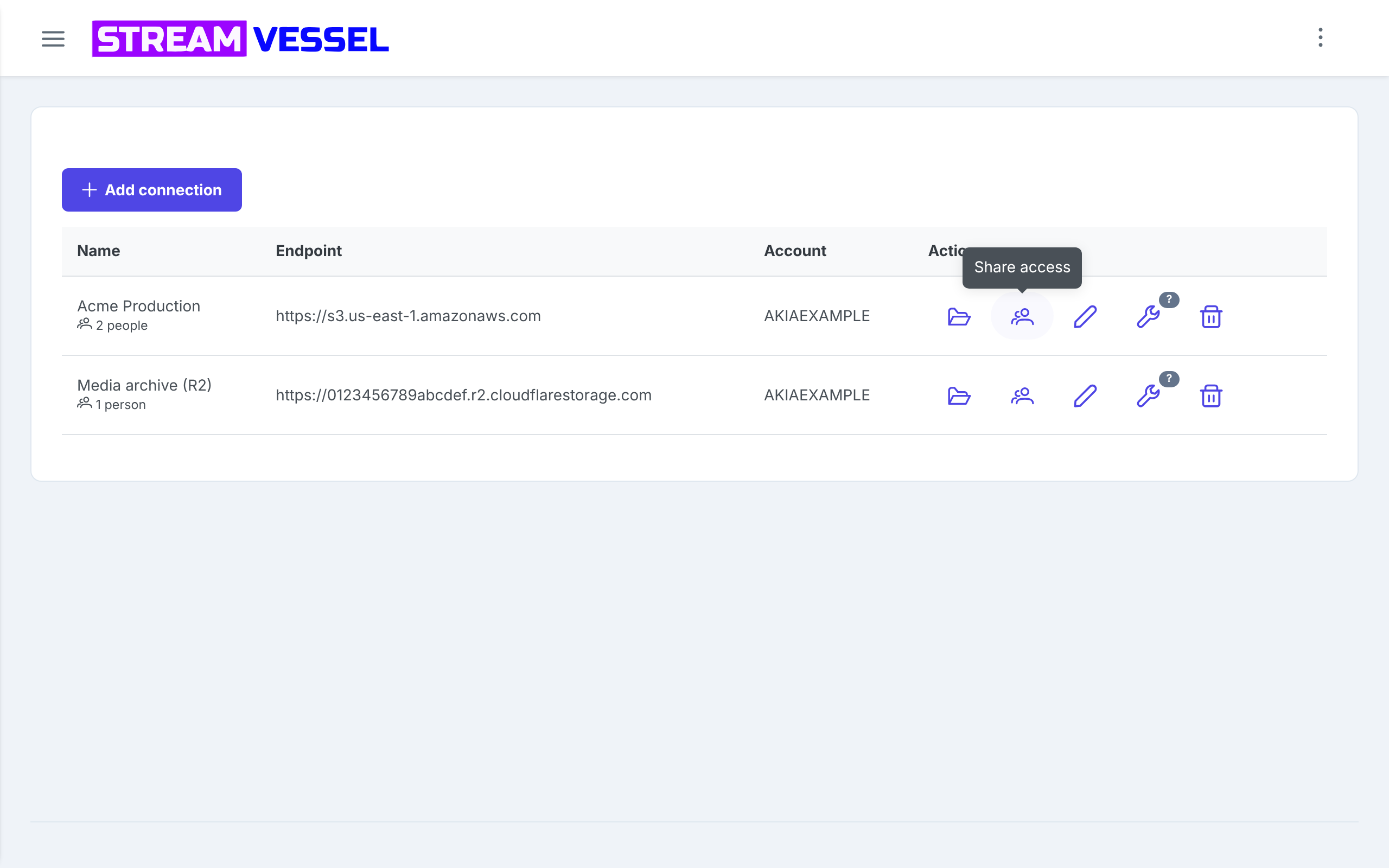
- From the Connections page: press the people icon (Share access) on the connection's row. A connection you have shared shows how many people under its name.
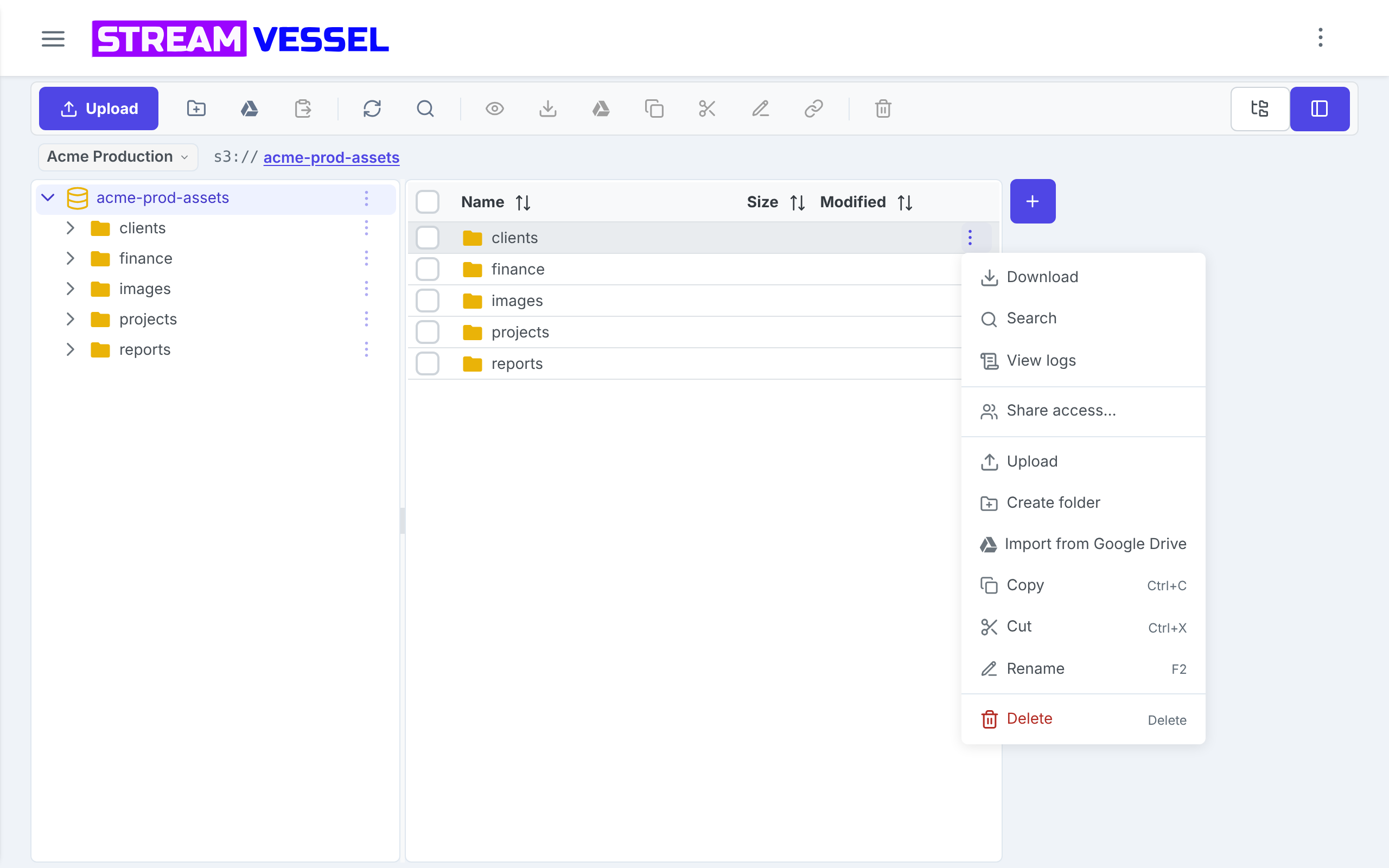
- From a folder in the explorer: open the folder's menu (the ⋮ button at the end of its row) and choose Share access…. The dialog opens with that folder already filled in, so this is the quickest way to share one folder.
- From the Shared access page: press Share a connection, then pick the connection.
Step 2: Enter who to share with
Type the person's email address under Who. It does not matter whether they already
use Stream Vessel: the invitation is tied to the address and waits until someone signs in with it.
Use the address they will sign in with, since an invitation to [email protected] is not
visible to [email protected].
Step 3: Choose what they can do
Under What they can do, pick a level. READ is selected by default, and the line under the buttons says in plain words what the chosen level allows on the path you are sharing.
| Level | They can | They cannot |
|---|---|---|
| READ | Browse, search, view, download, and create links to files | Upload, change, move, rename or delete anything |
| WRITE | Everything in READ, plus upload files, create folders and edit metadata | Move, rename or delete anything |
| FULL | Everything in WRITE, plus move, rename and delete | Share it with anyone else |
At every level they cannot see your access key or secret, edit the connection, change its CORS settings, create buckets or share onward.
Step 4: Choose what they get
Under What they get, choose how much of the connection to share:
- Whole connection: every bucket the connection reaches, including buckets created later.
- A bucket: pick one bucket from the list.
-
A folder: pick the bucket and type the folder path, such as
clients/northwind/. They can open that folder and everything under it, and nothing beside it: a share onprojects/alpha/does not openprojects/alpha-secret/. Above the folder, they see only the folder names on the way down to it.
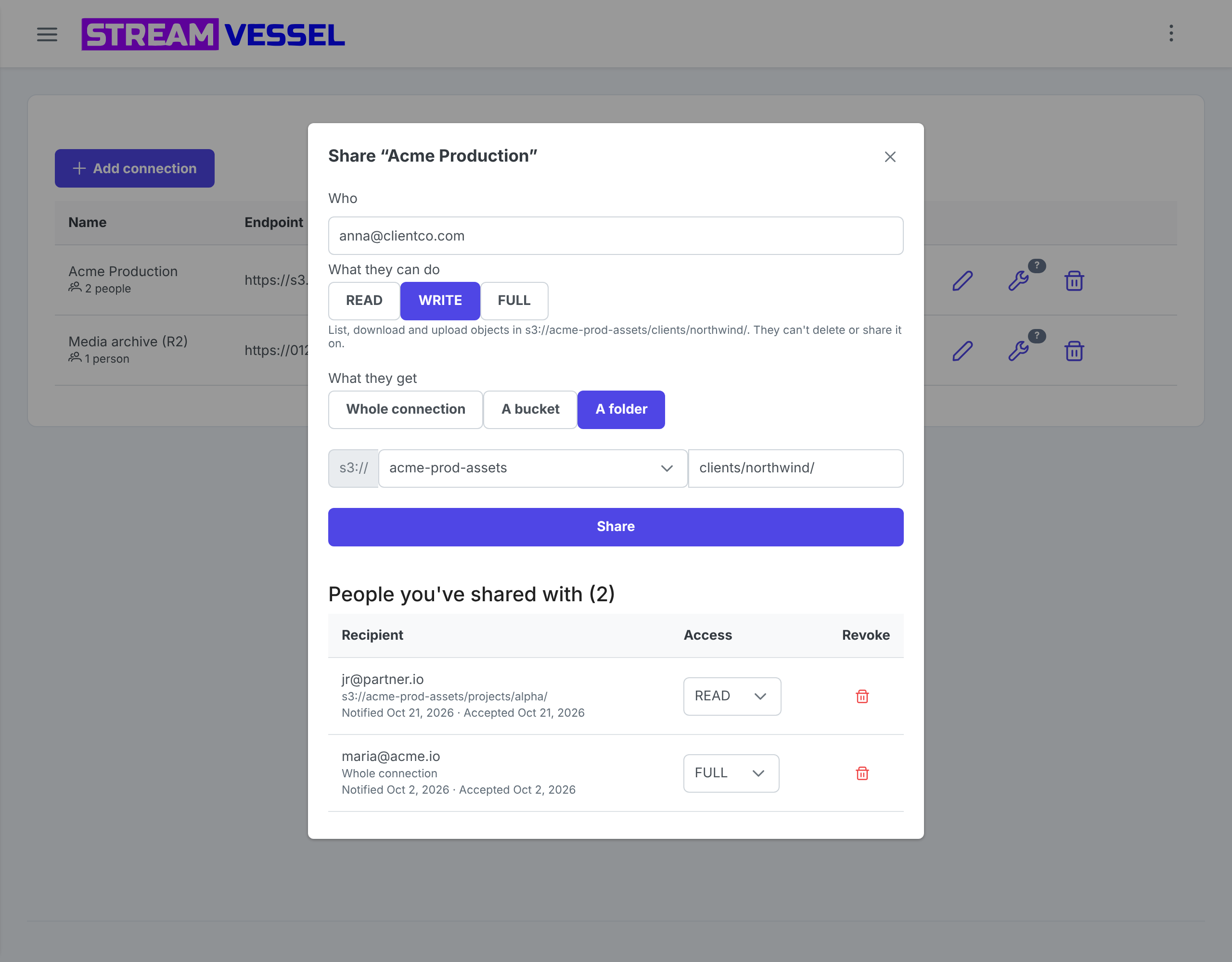
clients/northwind/ with WRITE access. The caption under the
levels describes exactly what the person will be able to do there.
Step 5: Press Share
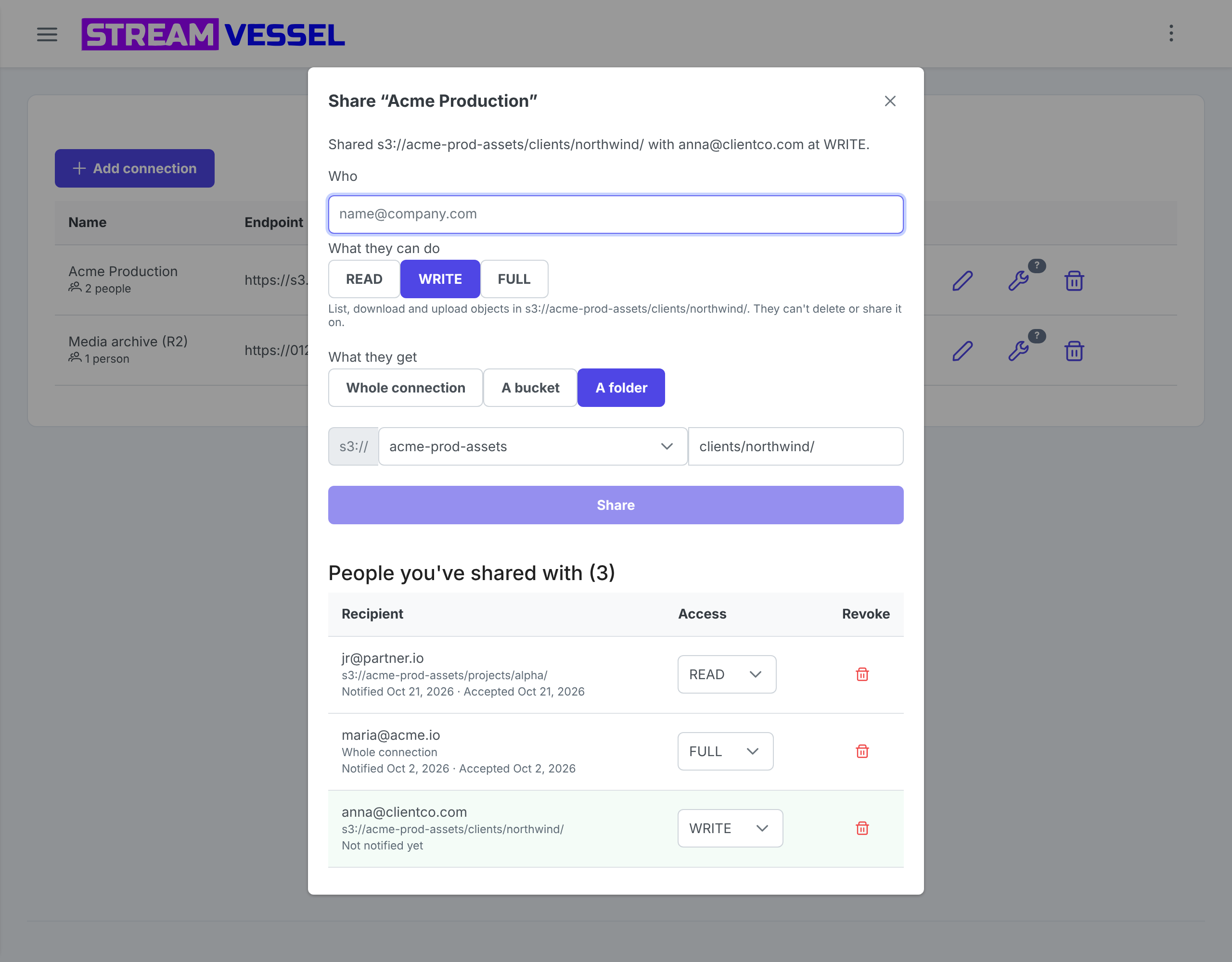
The dialog confirms the share, for example Shared s3://acme-prod-assets/clients/northwind/ with [email protected] at WRITE., and the person appears under People you've shared with. Stream Vessel emails them an invitation. The status under their name moves from Not notified yet to Notified with a date once the email has gone out, and shows Accepted with a date once they accept.
Step 6 (optional): Share another folder with the same person
Each share covers one folder. To add another, share again with the same email and the new folder.
Example: Anna has WRITE on clients/northwind/ and now needs to read
reports/.
-
Open the menu of
reportsand choose Share access…. The folder is filled in. -
Enter
[email protected], choose READ and press Share.
Anna now has two rows under People you've shared with:
| Recipient | Folder | Access |
|---|---|---|
| [email protected] | s3://acme-prod-assets/clients/northwind/ |
WRITE |
| [email protected] | s3://acme-prod-assets/reports/ |
READ |
If she has accepted already, the new folder appears for her at once, with no new email. If not, her invitation shows "2 folders" and one Accept covers both. Each folder keeps its own level, and revoking one leaves the other.
- Sharing the same folder again at a different level asks Change existing access? and then replaces the old level.
- To move a share to another folder, revoke it and share the new folder.
4. What the person you share with sees
The invitation
The invitation email comes from Stream Vessel, with replies going to you, under the subject "<your email> wants to share storage with you". It names the connection, the path and what they will be able to do, and links to Review the invitation. Nothing is shared until they accept, and the email says that the storage keys are never shared with them.
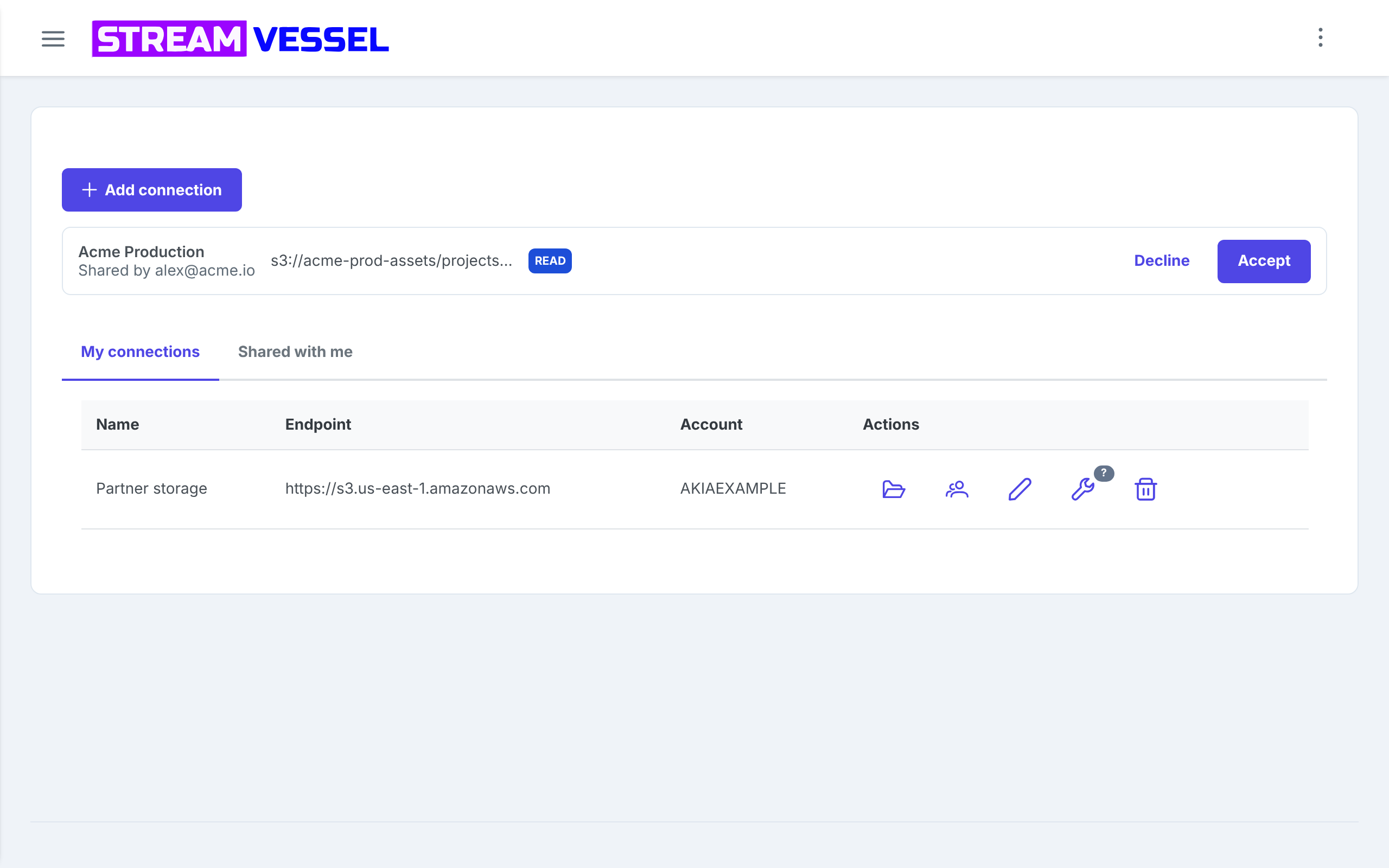
They sign in with the address the invitation went to, and an invitation card waits at the top of the Connections page, showing the connection, who shared it, the path and the level. They press Accept to start using it, or Decline to dismiss it.
Shared with me
Accepted connections are listed on the Shared with me tab of the Connections page, with who shared each one, its scope and the access level. The folder icon opens it in the explorer; the Leave icon removes it from their list.
Working in a shared folder
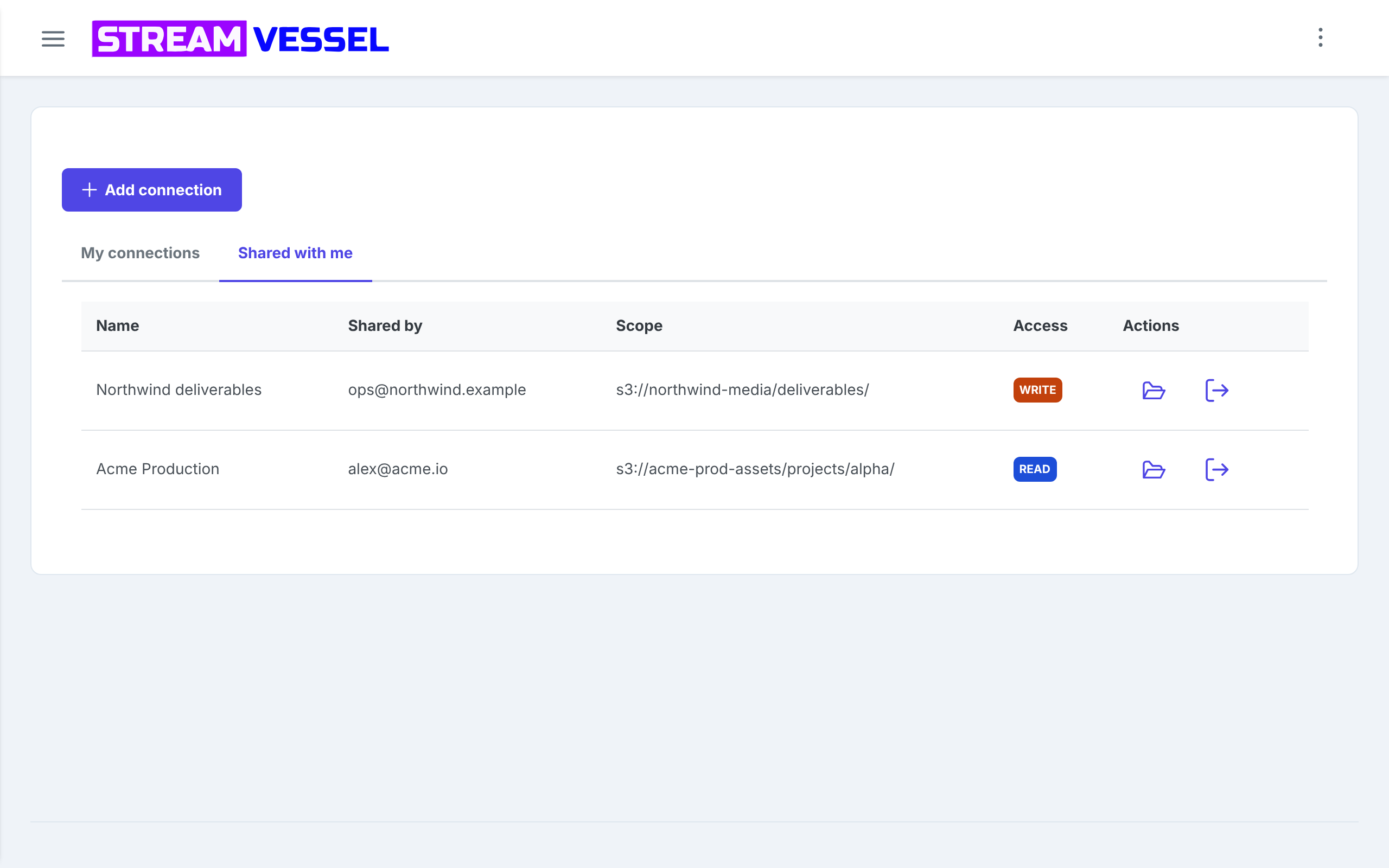
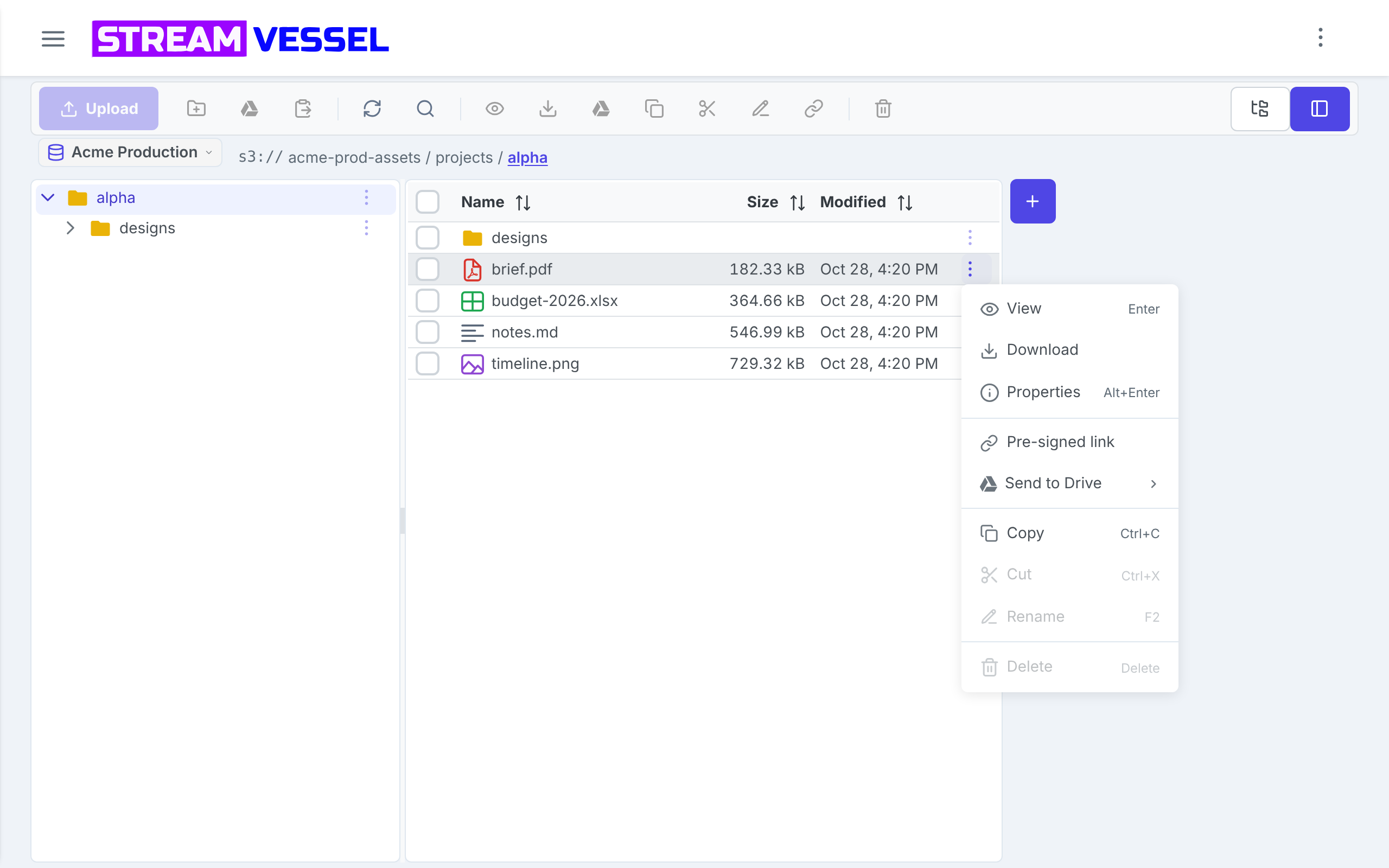
A shared connection opens straight at the shared folder, in the same explorer the owner uses: search, preview, the code editor, downloads and, with WRITE or FULL, uploads and copies. Actions the level does not allow stay visible but greyed out, and pointing at a greyed toolbar button says why.
Pre-signed links made by someone you shared with last at most 60 minutes, whatever duration they pick, so a link they made stops working within the hour after you revoke their access.
5. Change and revoke access
Open the share dialog for a connection to see everyone who has access to it. Change a person's level with the dropdown in their row, or press the trash icon (Revoke) and confirm. Revoking takes effect immediately, affects only that person and that path, and leaves your key and everyone else's access untouched.
The Shared access page
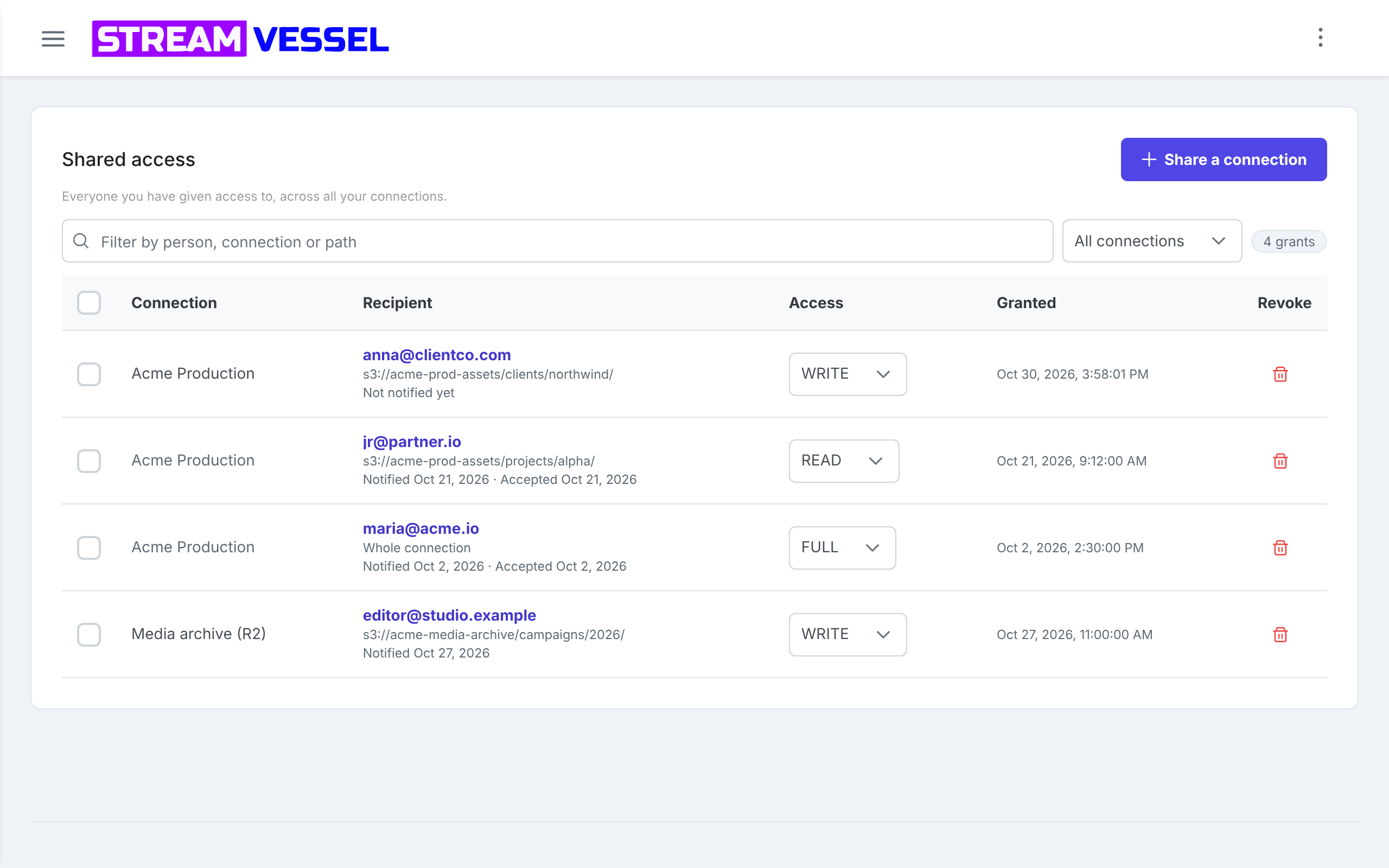
Shared access, in the S3 section of the sidebar, lists every grant across all your connections, with the connection, the person and the path, the level and when it was granted. Use it to audit and clean up:
- Type in Filter by person, connection or path, or pick one connection.
- Click a person's email to see everything they can reach, across all your connections.
- Tick several grants and press Revoke to remove them in one go.
What the email status means
| Status | Meaning |
|---|---|
| Notified <date> | The invitation email was sent. |
| Not notified yet | The email is on its way, or no email has been confirmed as sent. |
| Email failed | Sending failed. Press Resend. |
| Not announced | The email was not sent. Tell the person yourself; the share works either way. |
| Accepted <date> | When they first accepted. |
For the recipient's privacy, Stream Vessel never tells you that someone declined or left. If you lower someone's level or revoke their access after they accepted, they get a short email saying their access changed or was removed. Raising a level sends nothing.
6. Share files with pre-signed links
A pre-signed link is a URL to one file with a signature and an expiry built in. Anyone who has the link can download the file until it expires, without an account and without your keys. Links work in Stream Vessel Cloud and the Chrome extension, on every S3 connection.
A link to one file
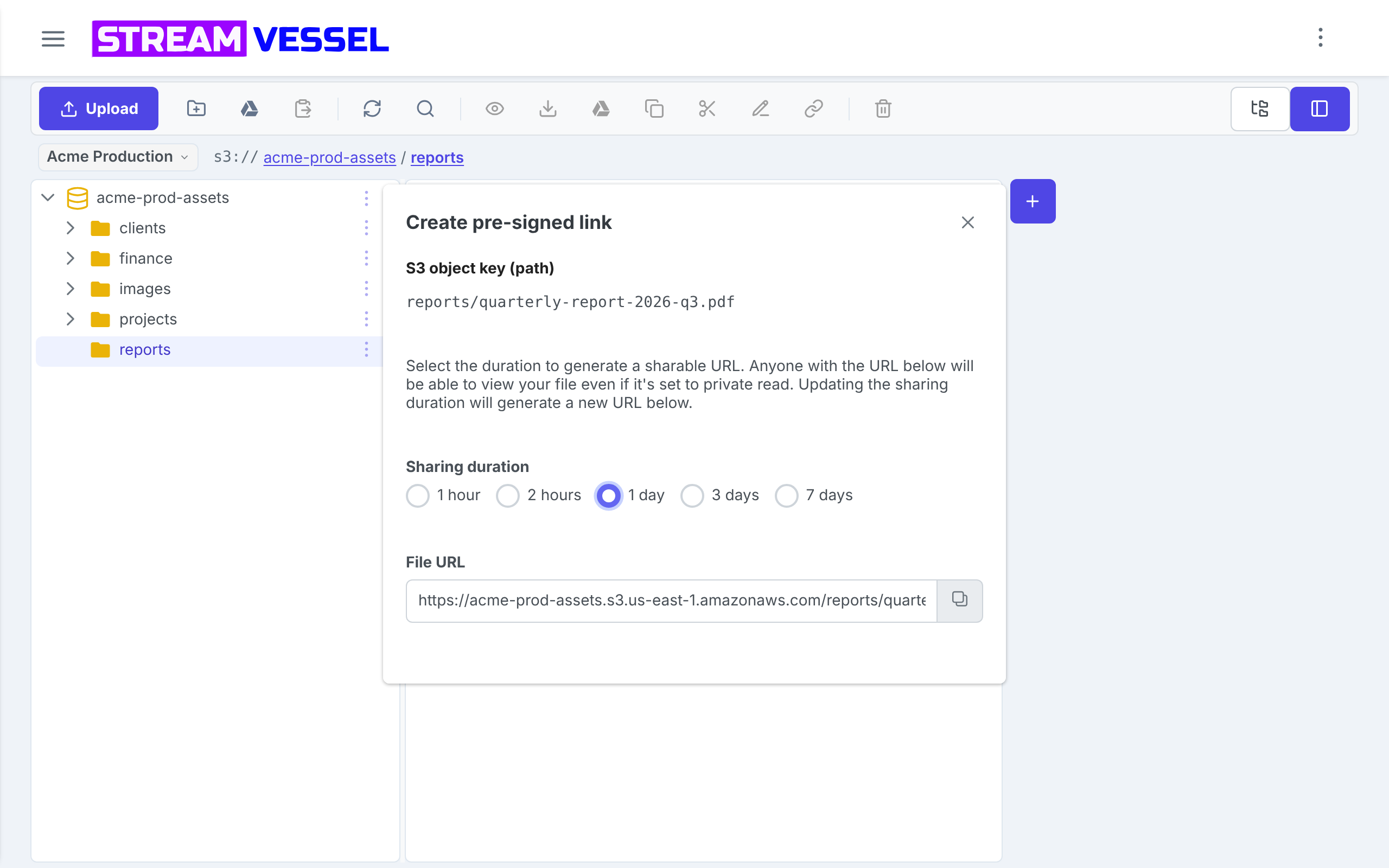
- Open the file's menu and choose Pre-signed link.
- Under Sharing duration, pick 1 hour, 2 hours, 1 day, 3 days or 7 days. A new link is generated every time you change it.
- Press the copy button next to File URL and send the link.
The link icon in the header of the file viewer opens the same dialog, and so does the link button in the toolbar when one file is selected.
Links to many files at once
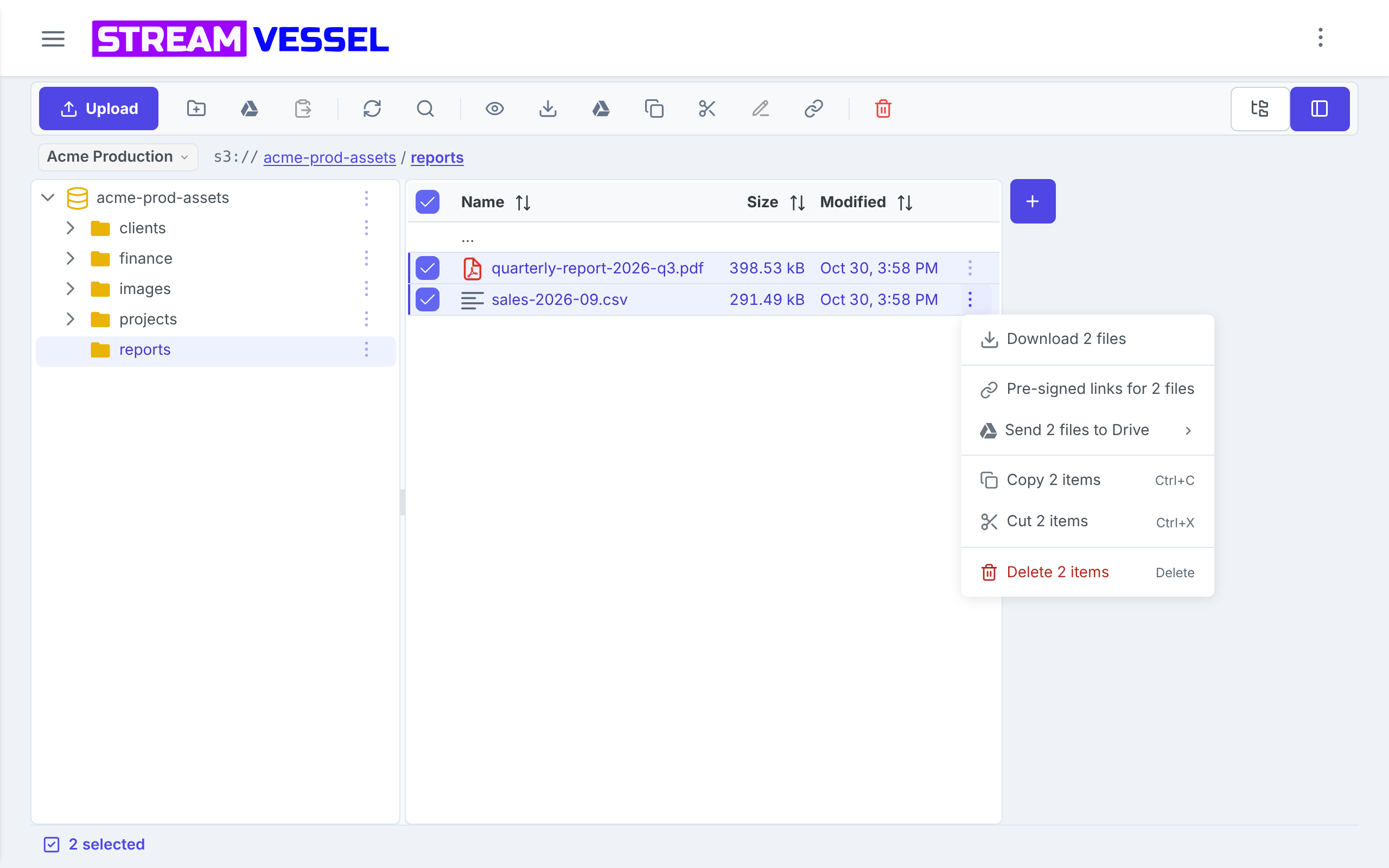
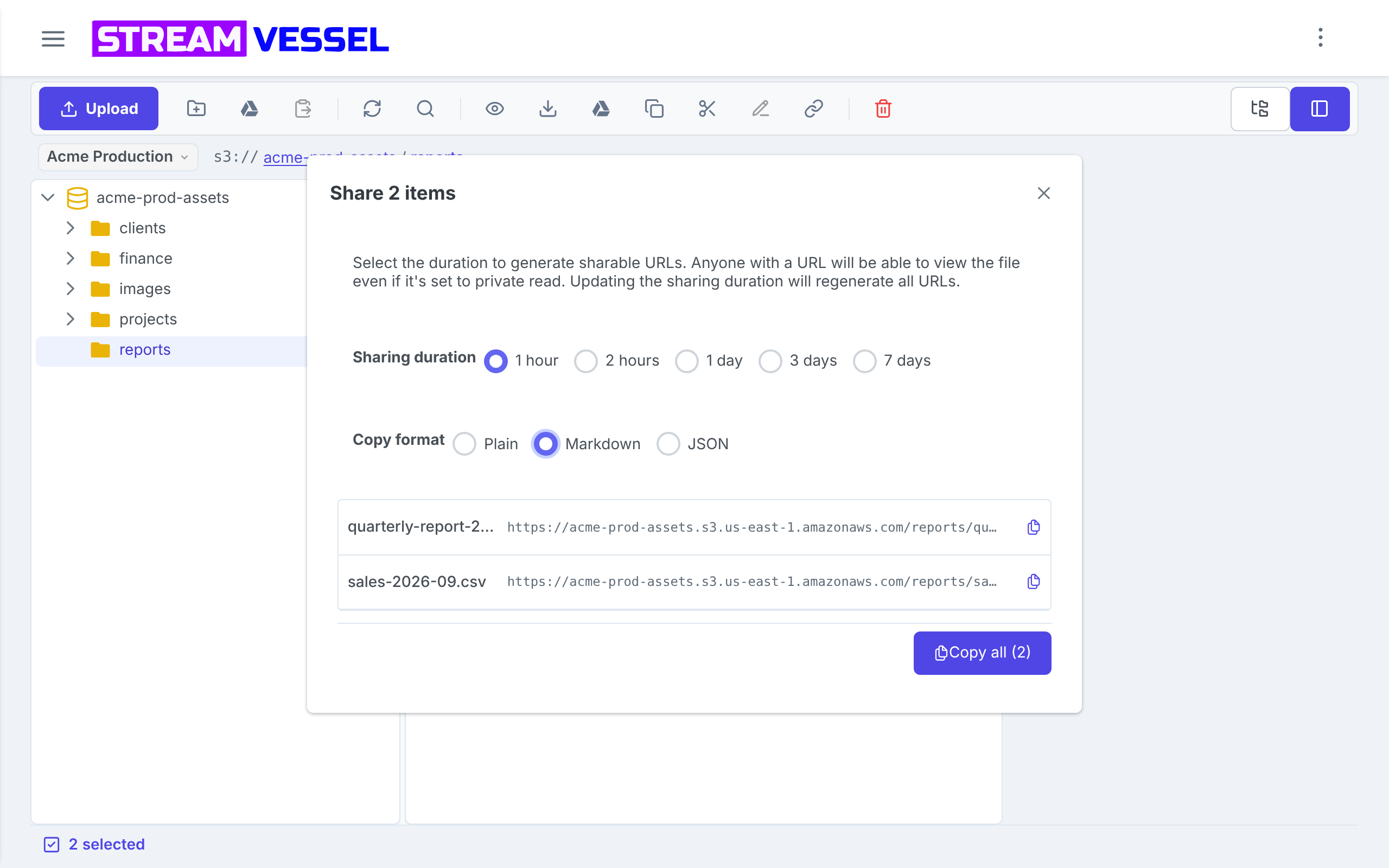
Select the files, then choose Pre-signed links for N files from the menu of any of them, or press the link button in the toolbar. One duration applies to all the links, and Copy format sets how Copy all copies them: Plain (one link per line), Markdown (a list of named links, ready for a ticket or a README) or JSON. Folders in a selection are skipped, because a link always points to one file.
What to know about links
- A link cannot be taken back. It works until it expires, for anyone it is forwarded to. For a confidential file, pick the shortest duration that works, or share access with the person instead.
- Seven days is the maximum, the limit S3 itself puts on signed links.
- Links download the file. A link made for a connection on your Stream Vessel account opens as a download in the browser, rather than displaying the file in a tab.
-
A link shows the access key ID (never the secret) in its
X-Amz-Credentialparameter. That is how S3 signatures work, and it is one more reason to use a key limited to what you share.
7. Share access with an AI agent
Stream Vessel's MCP server lets an AI client such as Claude, Cursor or VS Code list, read, upload and organise files in your storage through tokens you control. Open MCP access in the sidebar, press New token, and choose:
- Scope: READ (list and read objects), WRITE (plus upload and copy) or FULL (plus move and delete).
- Expires: 30 days, 90 days, 1 year or a custom date. Every token expires, after at most a year.
- Where it works: all your connections, or Only these: up to 50 connections, buckets or folders.
Claude and ChatGPT can connect without a token: add https://mcp.streamvessel.com as a
connector, sign in to Stream Vessel, and choose the access level, places and expiry on the consent
screen (a custom expiry there is a number of days).
Storage shared with you is available to your agent too, but never beyond the share: it gets the lower of the token's level and the share's. A READ share stays read-only even for a FULL token. The MCP server guide covers connecting each client step by step, and why the AI never holds your keys explains the design.
8. Security tips
- Share the smallest thing that does the job. A folder rather than a bucket, a bucket rather than the whole connection. Remember that a whole-connection share includes buckets you create later.
- Start at READ. Raise the level when someone needs it; it takes one click and sends no email.
- Know that WRITE can overwrite. WRITE cannot delete, but an upload with the same name replaces the existing file. If the files matter, turn on versioning on the bucket at your provider, or give WRITE to a separate upload folder.
- Keep FULL for people you trust with deleting. Stream Vessel cannot undo a delete; only your provider's versioning or backups can.
- Use a narrowly scoped key underneath. Sharing limits what people can do through Stream Vessel; the key decides what Stream Vessel itself can do. A key restricted by your provider to the buckets you use, and a connection limited to one bucket or folder (the Bucket / path field), give you a second fence.
- Review the Shared access page regularly, and revoke grants for finished projects and people who have left.
- Never send keys or exported connection files. The extension's Export connections file holds access keys and secrets in plain text; it is for backing up your own setup, not for sharing.
- Check that your buckets are not public. The Maintenance page's Check exposure button tests what a stranger without your keys can list and read in each bucket, and the Connections page flags buckets anyone can read.
9. Troubleshooting
I don't see Share access
- The connection is saved only on this device. In the extension, press the share icon and choose Move and share, or sign in first.
- The connection was shared with you. Only its owner can share it.
- You opened a file's menu. Share the folder that holds it, or create a pre-signed link.
The person did not get the email
Check the status under their name. Email failed and Not announced offer Resend. Ask them to check spam, or simply to sign in to Stream Vessel with that address: the invitation is waiting on their Connections page whether or not the email arrived.
They signed in but see nothing
They are probably signed in with a different address. Invitations belong to the exact address you entered, so either they sign in with that one, or you share again with the address they use.
"They already have exactly this access"
That person already holds this level on this path. Nothing needs to change.
Their pre-signed link stopped working after an hour
Links made by people you shared with last at most 60 minutes, so that revoking a share closes every door within an hour. For a longer link, create it yourself as the owner.