
How to add, use and remove the Stream Vessel app for Zoom
The Stream Vessel app for Zoom shows your Zoom cloud recordings in the Stream Vessel file explorer. You can play and download them, move the ones you no longer need to the Zoom trash, and copy them to your own S3-compatible bucket on a schedule. This guide covers adding the app, using it, and removing it again.
- Add: in Stream Vessel Cloud, open Connections, press Add connection, choose Zoom, press Connect and allow access in Zoom.
- Use: open the connection to browse Recordings and Trash by year, month and meeting. Press Automatic archive on the connection to copy recordings to your own bucket.
- Remove: delete the connection in Stream Vessel, then remove the app in Zoom at marketplace.zoom.us under Manage › Added Apps.
1. Before you start
- A Stream Vessel Cloud account. Sign in at app.streamvessel.com with Google, GitHub or a one-time email code. A Zoom connection is always saved on your account, because the archive runs on our server while you are signed out.
- A Zoom account with cloud recording. The app reads the recordings Zoom keeps in its cloud for your own Zoom user. Recordings saved to your computer are not in Zoom's cloud, so the app cannot see them.
- An S3-compatible connection, if you want to archive. The automatic archive copies recordings to a bucket on one of your own S3 connections saved on your account: AWS S3, Cloudflare R2, Backblaze B2, Wasabi, MinIO, IDrive e2 or any other S3-compatible storage. See how to connect S3 storage. Browsing and the trash work without one.
2. Add the app
- Sign in at app.streamvessel.com and open Connections in the sidebar.
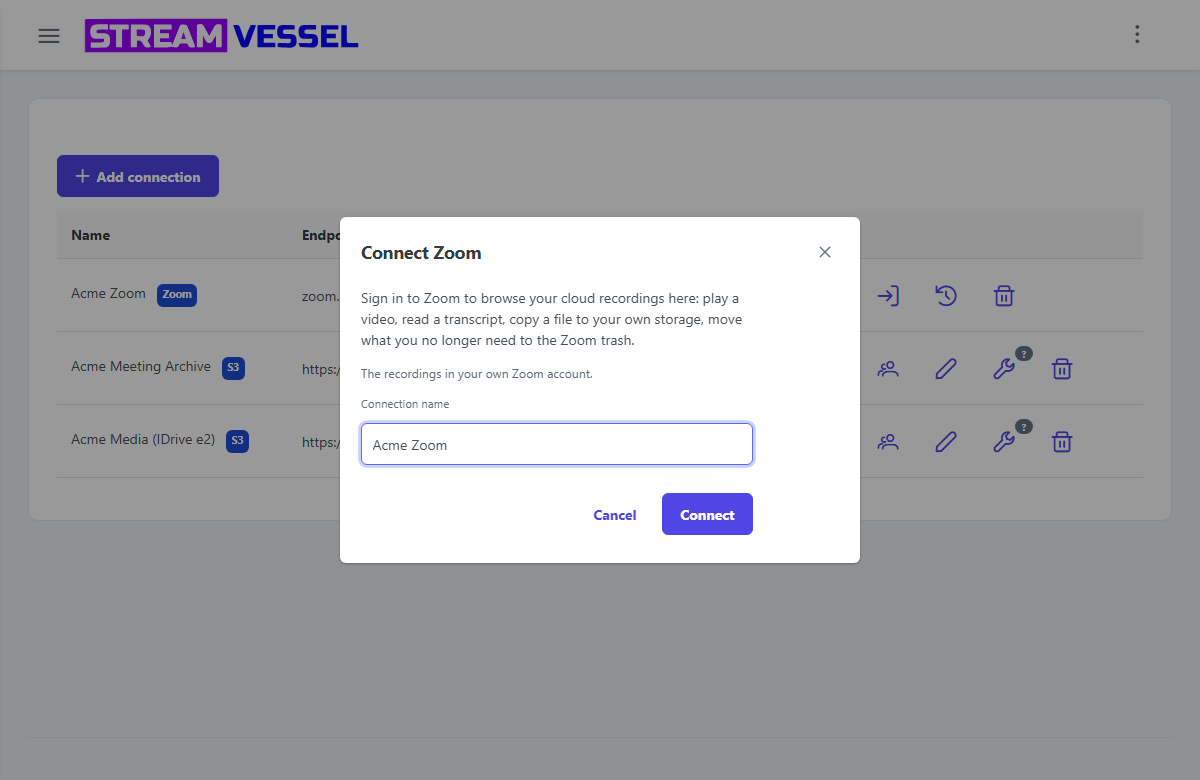
- Press Add connection and choose Zoom (Recordings, transcripts and chats from your Zoom cloud.). The Connect Zoom dialog opens.
- Keep or change the Connection name (it starts as Zoom) and press Connect. Zoom's sign-in opens in a pop-up window.
- Sign in to Zoom if you are not signed in already. Zoom shows the Stream Vessel app and the permissions it asks for, described in the next section. Allow them to continue.
- The pop-up closes and the dialog says Connected as followed by your Zoom email. Press Set up automatic archive to set up copying to your bucket now, or Not now to do it later.
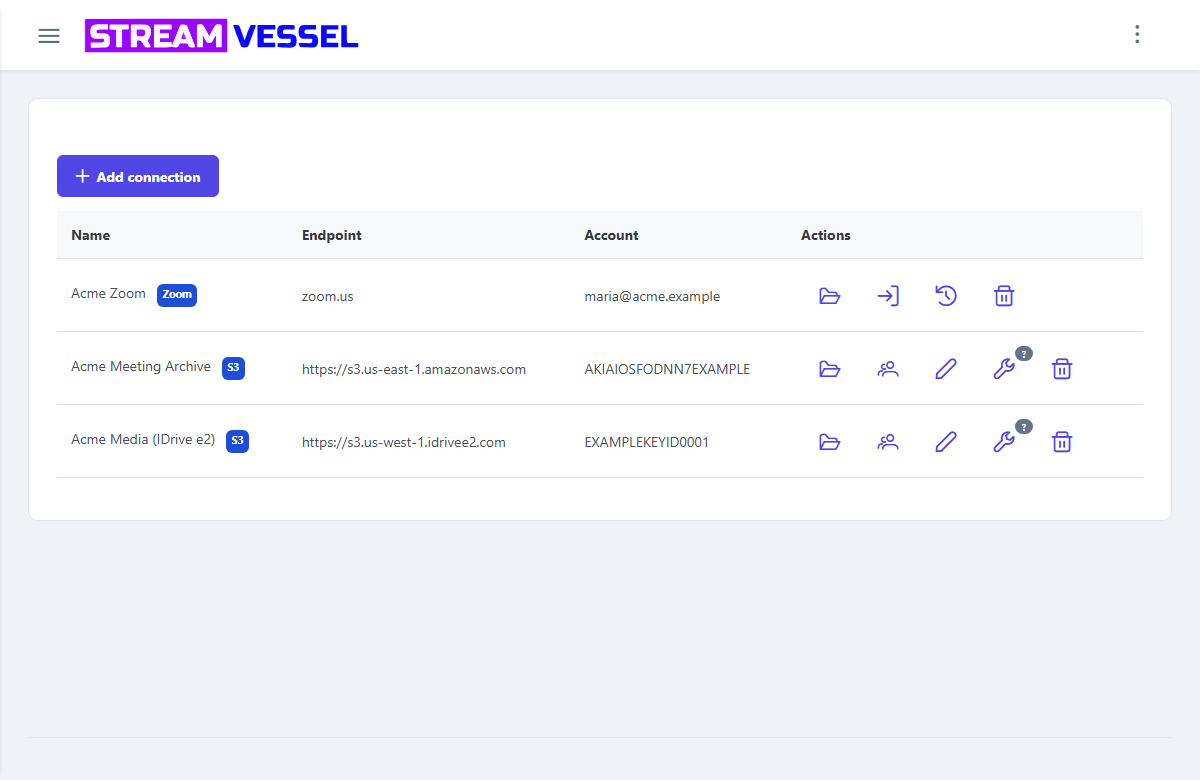
The connection appears on the Connections page with the tag Zoom and your Zoom email. If you close the pop-up or decline in Zoom, the dialog says Zoom did not authorize the connection. Nothing was saved. and you can press Connect again.
A Zoom connection's row has four buttons: the folder icon (open) to browse its recordings, the sign-in arrow (Sign in to Zoom again), the clock icon (Automatic archive) and the trash icon (delete).
3. What the app asks Zoom for, and why
Zoom lists these permissions on its consent screen. Each one is used for one thing in Stream Vessel, and only for your own Zoom user.
| Permission | What Stream Vessel does with it |
|---|---|
user:read:user |
Reads who signed in: your Zoom user id, email and time zone. The email labels the connection; the time zone dates meeting folders in your local time. |
cloud_recording:read:list_user_recordings |
Lists your cloud recordings by month, so you can browse years, months and meetings. |
cloud_recording:read:list_recording_files |
Lists the files in one meeting's recording: video, audio, transcript, chat and so on. |
cloud_recording:read:recording |
Downloads a recording file when you open it, download it, or the archive copies it. |
cloud_recording:delete:meeting_recording |
Moves a whole meeting's recording to the Zoom trash, when you choose Move to trash on a meeting. |
cloud_recording:delete:recording_file |
Moves one file to the Zoom trash, when you choose Move to trash on a file, or when the archive is set to trash recordings after copying them. |
cloud_recording:update:recover_meeting_recordings |
Restores a whole meeting from the Zoom trash, when you choose Restore. |
cloud_recording:update:recover_single_recording |
Restores one file from the Zoom trash, when you choose Restore. |
Both delete permissions are only ever used to move recordings to the Zoom trash, where Zoom keeps them for 30 days. Stream Vessel never deletes a recording permanently.
The app also receives two notifications from Zoom: one when a new cloud recording is ready, so the archive can copy it soon after, and one when you remove the app in Zoom, so we can delete your tokens (see Remove the app).
4. Browse, play and download recordings
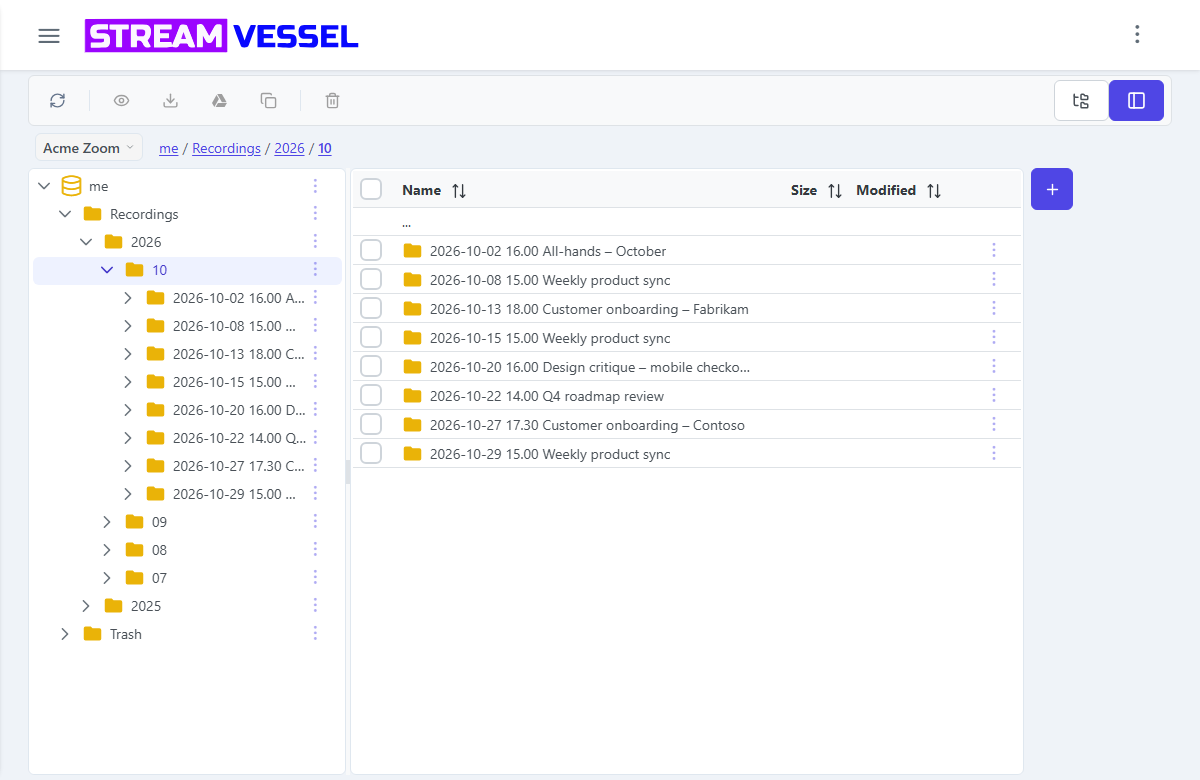
On the Connections page, press the folder icon (open) on your Zoom connection. Under the
top folder, me, are two folders:
- Recordings: your cloud recordings.
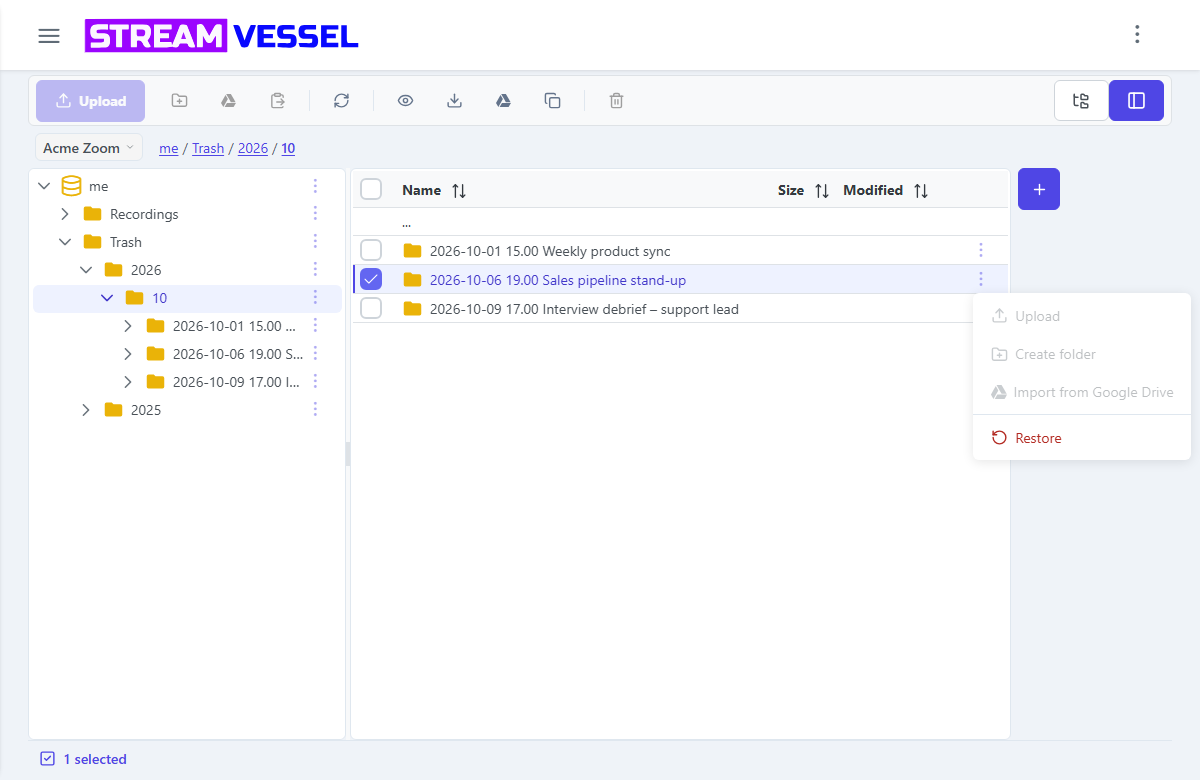
- Trash: recordings in the Zoom trash.
Each holds a folder per year, then per month (2026 › 10), then a folder
per meeting named by its start time and topic, such as 2026-10-20 14.00 Weekly sync.
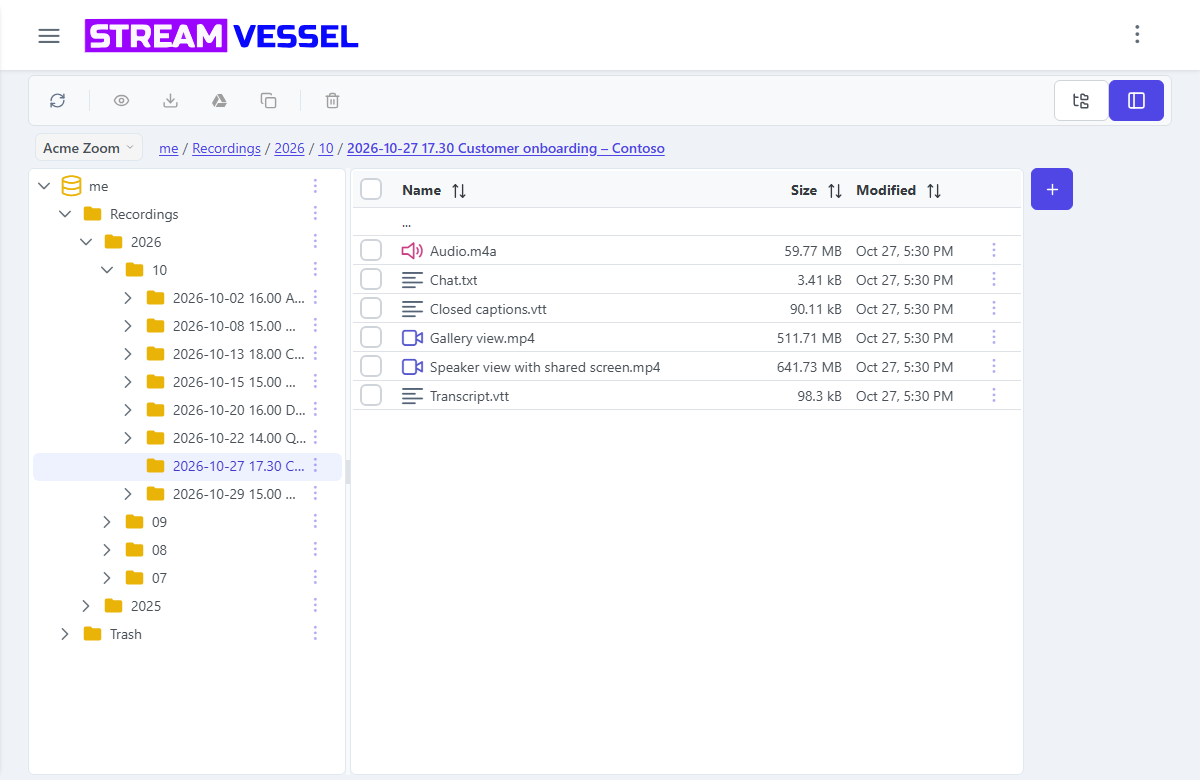
Times are in your Zoom time zone. Inside a meeting are its files, with readable names such as
Speaker view.mp4, Audio.m4a, Transcript.vtt and
Chat.txt.
- Open a file by double-clicking it: videos play, and transcripts and chats open as text.
- Download a file, or a whole meeting folder, from its menu (the ⋮ button or a right-click).
- Copy a file or a meeting from its menu and paste it into a folder on one of your S3 connections to keep a copy in your own storage.
- Properties of a file show the meeting topic, host, start time, duration, file type, size and status.
A file Zoom is still processing shows (processing) after its name and cannot be opened yet. You cannot upload files or create folders in a Zoom connection.
5. Move recordings to the Zoom trash and restore them
Move to the trash
- Under Recordings, open a meeting's menu, or a file's, and choose Move to trash. You can also select several items and use Move to trash in the toolbar.
- The dialog says the item will be moved to the Zoom trash. You'll have 5 seconds to undo. Press Move to trash.
Moving a meeting folder moves all of its files. Zoom keeps the trash for 30 days, then deletes it itself.
Restore
Open Trash, go to the year, month and meeting, then choose Restore from the menu of the meeting or of one file. It goes back under Recordings.
6. Archive recordings to your own bucket
The automatic archive copies your recordings, on a schedule, to a bucket on one of your S3 connections. The copy runs on our server, straight from Zoom to your storage, so your computer does not need to be on. Open it with Set up automatic archive right after connecting, or later with the clock icon (Automatic archive) on the Zoom connection's row.
The settings
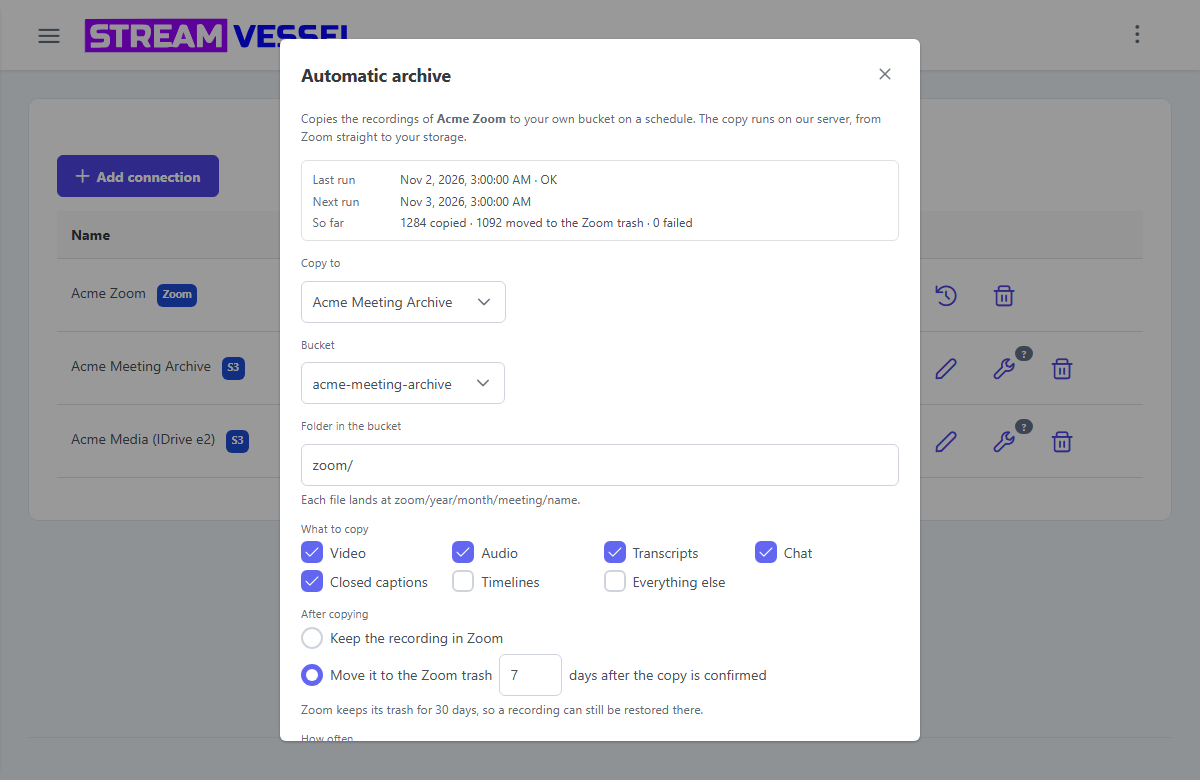
- Copy to and Bucket: one of your S3 connections and a bucket in it. If you have none, the dialog says An archive writes to an S3 connection on your account. Add one first, then come back here.
-
Folder in the bucket: where the recordings go, for example
zoom/. Leave it empty to use the top of the bucket. - What to copy: Video, Audio, Transcripts, Chat, Closed captions, Timelines and Everything else. All but Timelines and Everything else are ticked to start with.
- After copying: Keep the recording in Zoom (the default), or Move it to the Zoom trash a number of days after the copy is confirmed, from 0 to 30 (7 to start with). Zoom keeps its trash for 30 days, so you can still restore a recording there.
- How often: every hour, every 6 hours, every 12 hours, every day (the default) or every week. A new recording is also picked up shortly after Zoom finishes processing it.
- Archive recordings from: the earliest recording date to copy. It starts 30 days back.
- Run on this schedule: untick it to pause the archive without losing the settings.
Press Save. A new archive starts right away. Run now starts another run at once, and the top of the dialog shows the Last run, the Next run, how many files have been copied, moved to the Zoom trash or failed, and the most recent failures.
How files are named
Each file lands at folder/year/month/meeting/name, for example:
zoom/2026/10/2026-10-20 14.00 Weekly sync/Speaker view.mp4
The names are the same ones you see in the explorer. When a meeting has two files with the same
name, the second gets its own start time, such as Speaker view 14.32.mp4. When two
meetings have the same topic and start minute, the later folder gets a short code in brackets so
nothing is overwritten. Each file is copied once; editing the settings does not copy it again.
Large files and failures
- Files over 16 MiB are uploaded in 16 MiB parts. If a copy is cut short, the next try carries on from the parts already uploaded instead of starting again.
- A failed copy is retried on later runs, up to five times. An upload the archive gives up on is cancelled at your storage provider, so you are not billed for leftover parts.
- Before a recording is moved to the Zoom trash, the archive checks that its copy is still in your bucket with the same size. If not, the recording stays in Zoom and the failure says Not moved to Zoom trash: the archived copy is missing or a different size.
Turn the archive off
Untick Run on this schedule and save to pause it, or press Turn off and remove to delete the archive settings and its list of copied files. Copies already in your bucket stay there.
7. Remove the app
Removing the app fully takes two steps: one in Stream Vessel and one in Zoom. Do both.
Step 1: Delete the connection in Stream Vessel
- Open Connections at app.streamvessel.com.
- Press the trash icon (delete) on the Zoom connection's row. The confirmation says Your <connection name> will be permanently deleted. Delete? Confirm it.
This deletes, at once: the connection with its name and your Zoom email, your Zoom tokens, the archive settings and the archive's list of copied files. An archive upload still in progress is cancelled. Stream Vessel stops using your Zoom account immediately.
Step 2: Remove the app in Zoom
- Sign in at marketplace.zoom.us.
- Choose Manage, then Added Apps.
- Find Stream Vessel and press Remove.
Zoom then revokes the app's access and notifies Stream Vessel. When that notice arrives we delete your Zoom tokens and the archive's list of copied files right away, and stop any archive upload in progress. If you have not deleted the connection in step 1, it stays in your list marked as needing a new sign-in, with its name, your Zoom email and the archive settings, until you delete it.
- Copies in your bucket are yours. Recordings the archive copied stay in your own storage. Removing the app never deletes them; delete them there if you no longer want them.
- Your recordings in Zoom are untouched. Recordings in the Zoom trash stay there until Zoom empties it or you restore them in Zoom.
- Your Stream Vessel account and your other connections stay. To delete the account itself, write to [email protected].
8. Troubleshooting
The connection's sign-in icon is red
Pointing at it says Zoom stopped accepting this connection: sign in again. Zoom no longer accepts the app's access, for example because the app was removed in Zoom or the authorization was revoked or expired. Browsing then says Zoom needs you to sign in again. Use "Sign in again" on this connection in your connections list. and the archive is paused.
Press the icon, then Sign in again in the Sign in to Zoom again dialog, and allow access in Zoom. The connection's name and archive settings stay as they are, and a paused archive runs again right away. Sign in as the same Zoom user: a different one is refused with Sign in as the Zoom user this connection belongs to.
The archive is paused or failing
- Zoom needs you to sign in again: sign in again as described above.
- The destination connection was deleted; choose another one.: the S3 connection the archive wrote to is gone, so the archive turned itself off. Choose another connection under Copy to, then save.
- Individual files under the failures list: check that the bucket still exists and that the connection's key may write to it. Failed files are retried on later runs.
The sign-in did not finish
Signing in to Zoom did not finish. Nothing was saved; you can try again. usually means the pop-up was blocked or closed. Allow pop-ups for app.streamvessel.com and press Connect again.
A recording is missing
The app shows Zoom cloud recordings of your own Zoom user only. Local recordings, and recordings Zoom has not finished processing, are not listed or are marked (processing). A recording you moved to the trash is under Trash.
9. Support and privacy
Questions or problems: write to [email protected]. What we store from Zoom, how it is protected and when it is deleted is set out in the Zoom integration section of our privacy policy. In short: your Zoom tokens are stored encrypted, recordings stream through our server and are never stored on it, and nothing from Zoom is sold, shared or used to train AI.