
How to connect AWS S3, Cloudflare R2, MinIO and other storage to Stream Vessel
A connection is how Stream Vessel reaches your storage: the address of the storage, the keys that open it and a few settings that say how to talk to it. You create one per storage account, or per bucket or folder if you want to keep things apart, and then browse, search, upload and share through it. This guide covers every type of connection, every field on the form, and the advanced options for setups that are not quite standard.
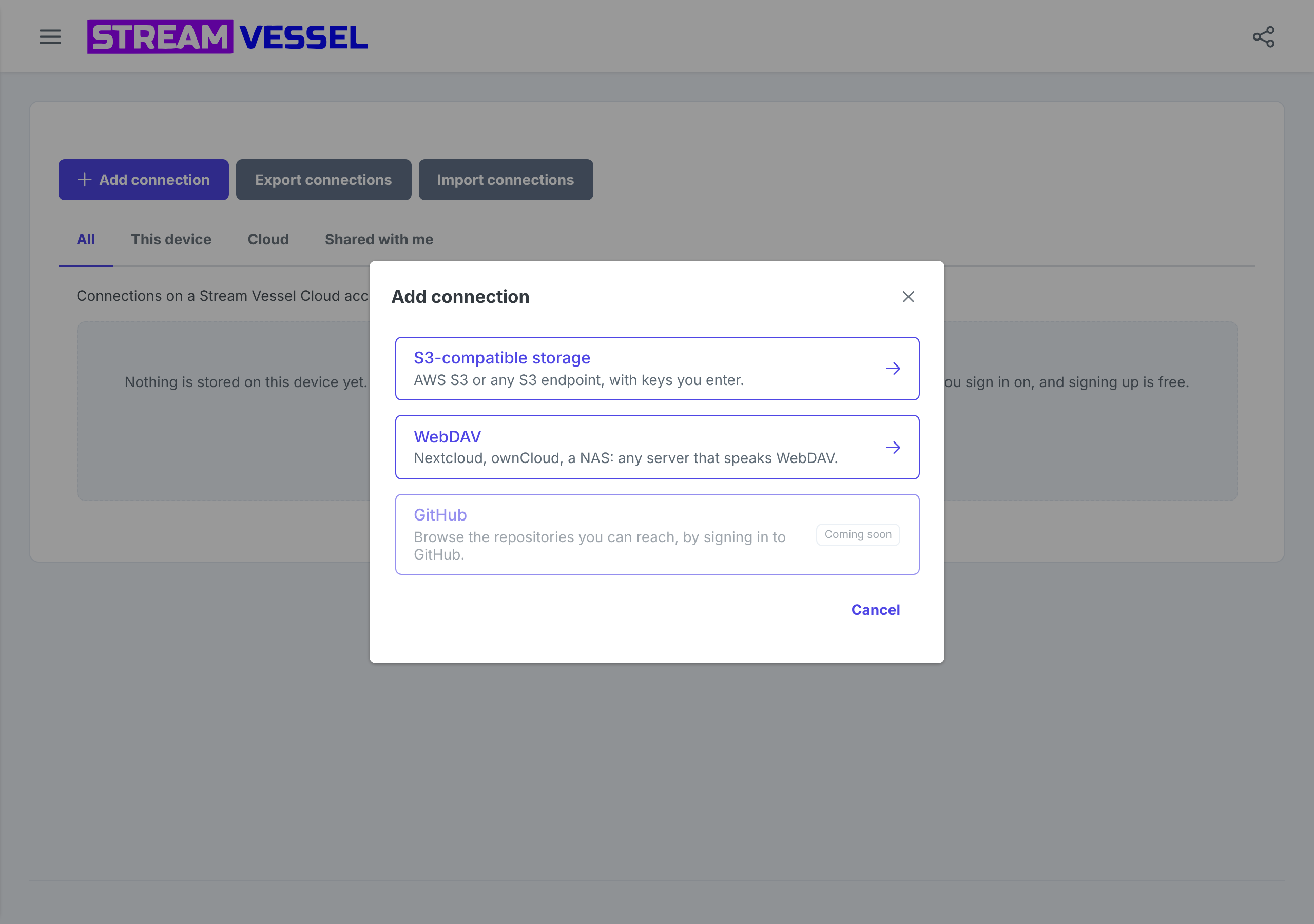
- Press Add connection and choose S3-compatible storage.
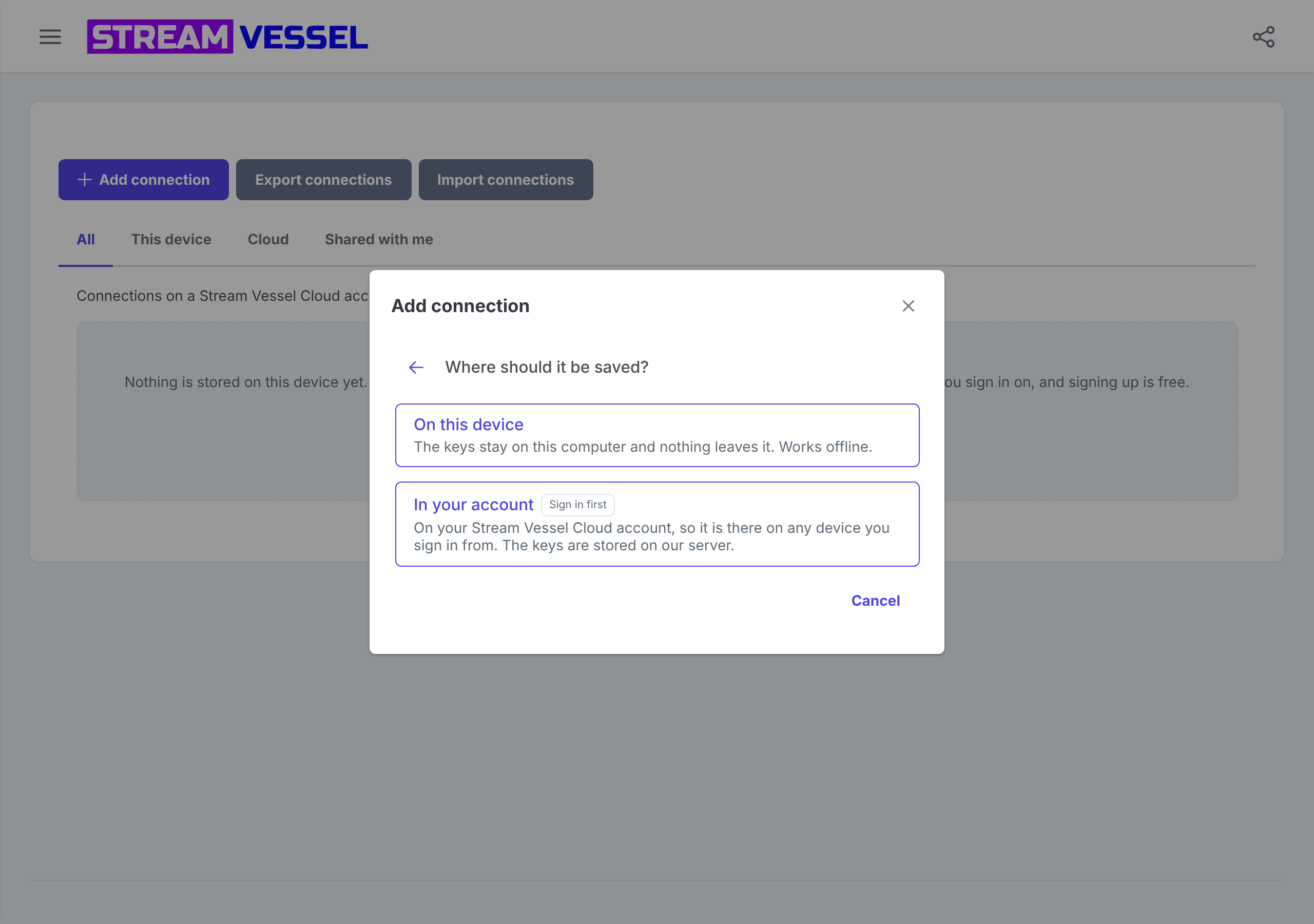
- In the Chrome extension, choose where to save it: On this device or In your account. Stream Vessel Cloud always saves it in your account.
- Pick your provider, give the connection a name, and enter the service endpoint (not needed for AWS), the access key and the secret key.
- Press Test Connection. When the check mark appears and your buckets are listed, press Save.
1. Connection types
Add connection opens a list of connection types. Which ones you can choose depends on the app you use:
| Type | What it connects | Stream Vessel Cloud | Chrome extension |
|---|---|---|---|
| S3-compatible storage | AWS S3 or any S3 endpoint, with keys you enter | Yes, saved in your account | Yes, on this device or in your account |
| WebDAV | Nextcloud, ownCloud, a NAS: any server that speaks WebDAV | Coming soon | Yes, on this device |
| GitHub | The repositories you can reach, by signing in to GitHub | Coming soon | Coming soon |
Most of this guide is about S3-compatible storage, the type almost everyone starts with. WebDAV has its own section. The desktop app, coming soon, will save S3 and WebDAV connections on your computer.
2. On this device or in your account
In the Chrome extension, after you pick S3-compatible storage, Stream Vessel asks Where should it be saved? The choice decides where your keys live and what the connection can do.
| On this device | In your account | |
|---|---|---|
| Where the keys are kept | In your browser profile, on this computer only | On Stream Vessel servers, with the secret key encrypted with AES-256 |
| Account needed | No | Yes, sign-in is free |
| Available on | This browser | Any device you sign in on, in Stream Vessel Cloud or the extension |
| Storage it can reach |
Anything your computer can reach, including localhost and your local
network
|
Endpoints reachable on the public internet |
| Sharing with people and AI agents | No | Yes, by email and through MCP tokens |
| CORS rules on your buckets | Not needed | Applied for you, if you leave the option on |
| Assume Role | Yes | Not yet |
| Export to a file | Yes | No |
You are not locked in. A connection saved on this device can be moved to your account later with one click; see Move a connection to your account. In either place, file contents travel between your browser and your storage. Stream Vessel servers never hold your files.
If you choose In your account while signed out, the option is marked Sign in first, and choosing it takes you to sign-in.
3. Before you start: keys and endpoint
Have these ready from your storage provider’s console:
-
An access key and a secret key. AWS calls them the access key ID and the secret
access key; Backblaze B2 calls them the
keyIDand theapplicationKey; Cloudflare R2 shows them when you create an R2 API token. Create a key for Stream Vessel alone, so you can revoke it without affecting anything else. - The service endpoint, unless you use AWS. It is the address of the S3 API, and your provider shows it in the console or its documentation. The provider table shows the usual shape for each one.
- The bucket name, if your key can reach only one bucket. Keys that cannot list all buckets need it in Bucket / path.
A connection can do whatever its key allows. A key limited at your provider to the buckets you use, and to read-only access if you only need to look, is the strongest protection you have. See a least-privilege key for AWS S3 for an example.
4. Create an S3 connection, step by step
Step 1: Open the Add connection dialog
Go to the Connections page and press Add connection. On a new account, the page offers Set up your first connection instead; it opens the same dialog.
Step 2: Choose the type and where to save it
Choose S3-compatible storage. In the Chrome extension, choose On this device or In your account. Stream Vessel Cloud skips this question and opens the form, headed Saved in your account.
Step 3: Pick your provider
The row of tiles at the top of the form sets sensible defaults for your provider: AWS, Cloudflare R2, Backblaze B2, MinIO, Ceph, Wasabi, DO Spaces or Other…. AWS is selected when the form opens. For any provider not listed, such as IDrive e2, choose Other…. Changing the provider clears the service endpoint, so pick the provider first.
Step 4: Fill in the connection details
- Connection name: any name that helps you recognise it, such as Acme Production or Media archive (R2).
- Service endpoint: shown for every provider except AWS, with a placeholder in the shape your provider uses.
- Access key and Secret key.
Leave Show advanced options closed unless you need to set a region, limit the connection to a bucket or folder, override the AWS endpoint, or assume a role. Advanced options explains each one.
Step 5: Test the connection
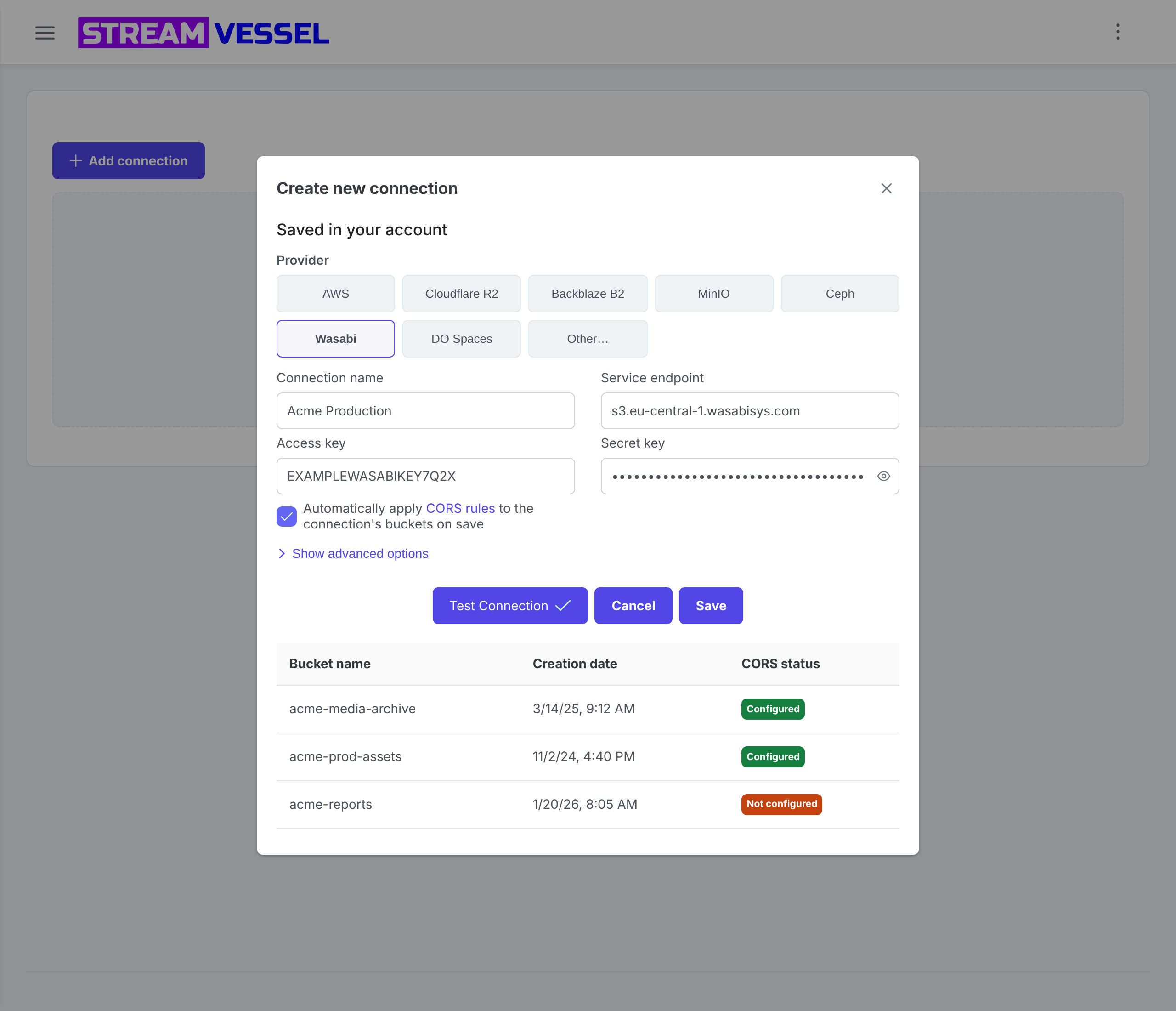
Press Test Connection. Stream Vessel signs in to your storage with the keys and lists what they can reach:
- A check mark on the button and a table of your buckets mean everything works. On a connection saved in your account, the table also shows each bucket’s creation date and CORS status.
- With Bucket / path filled in, the test checks that one place instead and shows Scope verified — s3://bucket/folder. On a connection saved in your account, the line also shows that bucket’s CORS status.
- A red cross and a Connection test failed message mean something needs fixing. The message, and often a hint below it, say what; see Troubleshooting.
In the Chrome extension, the first test of a connection on this device to a new host asks for permission: Stream Vessel explains why and Chrome asks you to allow access to that host. Press Allow. If you decline, the form shows Stream Vessel needs permission to reach this storage with a Grant access button for later.
Step 6: Save
Press Save. The connection appears on the Connections page, and the folder icon on its row opens it in the explorer. Saving does not require a successful test, but a connection that fails the test will not work until you fix it.
5. Every field explained
| Field | What to enter | Where |
|---|---|---|
| Provider | The tile for your provider, or Other…. Sets the endpoint hint and defaults. | Both |
| Connection name | Required. Any name you like. | Both |
| Service endpoint |
Required for every provider except AWS. A host name or IP address, optionally with
http:// or https:// and a port, such as
https://s3.example.com:443. Without a scheme, HTTPS is used. An IPv6
address with a port goes in brackets: [2001:db8::1]:9000.
|
Both |
| Access key |
Required. The public half of the key, such as AKIAIOSFODNN7EXAMPLE.
|
Both |
| Secret key | Required. The private half. The eye icon shows what you typed. | Both |
| Automatically apply CORS rules to the connection’s buckets on save | On by default. Lets Stream Vessel set the CORS rules your browser needs to transfer files. See CORS. | Account |
| Region (advanced) |
Optional. A region name such as us-east-1, using letters, digits and
hyphens only. Detected automatically in most cases.
|
Both |
| Bucket / path (advanced) |
Optional. bucket or bucket/folder/ to restrict the
connection to one bucket or folder. See Bucket / path.
|
Both |
| Service endpoint (advanced, AWS only) | Optional. Overrides the default AWS endpoint, for FIPS, dual-stack or a VPC interface endpoint. | Both |
| Path-style bucket access | Shown under the endpoint for Other…, and on by default. See Path-style addressing. | Device |
| Assume Role (advanced) | For AWS, MinIO, Ceph and Other…: a switch that opens Role ARN, External ID and STS endpoint. See Assume Role. | Device |
Both means the field is on the form for connections on this device and in your account; Account and Device mean only one of them. Advanced fields that hold a value open automatically when you edit the connection, so nothing you set stays hidden.
6. Endpoints and defaults by provider
Replace the parts in angle brackets with your own values. Your provider’s console shows the exact endpoint for your account or region.
| Provider tile | Service endpoint | Notes |
|---|---|---|
| AWS | Leave empty | The region is found for you. FIPS, dual-stack and VPC endpoints go under advanced options. |
| Cloudflare R2 | <account-id>.r2.cloudflarestorage.com |
Buckets in the EU jurisdiction use the .eu. endpoint. An R2 token
limited to one bucket needs Bucket / path.
|
| Backblaze B2 | s3.<region>.backblazeb2.com |
Shown on the bucket’s page, for example s3.us-west-004.backblazeb2.com.
|
| MinIO |
Your server’s S3 API address, such as https://minio.example.com:9000
|
Uses path-style addressing. Supports Assume Role without a role ARN. |
| Ceph | Your RADOS Gateway address | Uses path-style addressing. Assume Role needs the role created on the cluster. |
| Wasabi | s3.<region>.wasabisys.com |
Use the endpoint of the region your bucket is in. |
| DO Spaces | <region>.digitaloceanspaces.com |
For example fra1.digitaloceanspaces.com. One connection per datacenter.
|
| Other… | Any S3-compatible endpoint, such as IDrive e2’s | Path-style is on by default and can be turned off. |
Enter the endpoint of the service, not of a bucket. If you paste an address that starts with a
bucket name, such as my-bucket.s3.eu-central-1.wasabisys.com, Stream Vessel spots it
and offers to split it: the endpoint keeps the service part and the bucket goes into
Bucket / path.
7. Advanced options
Press Show advanced options under the keys to reach these settings.
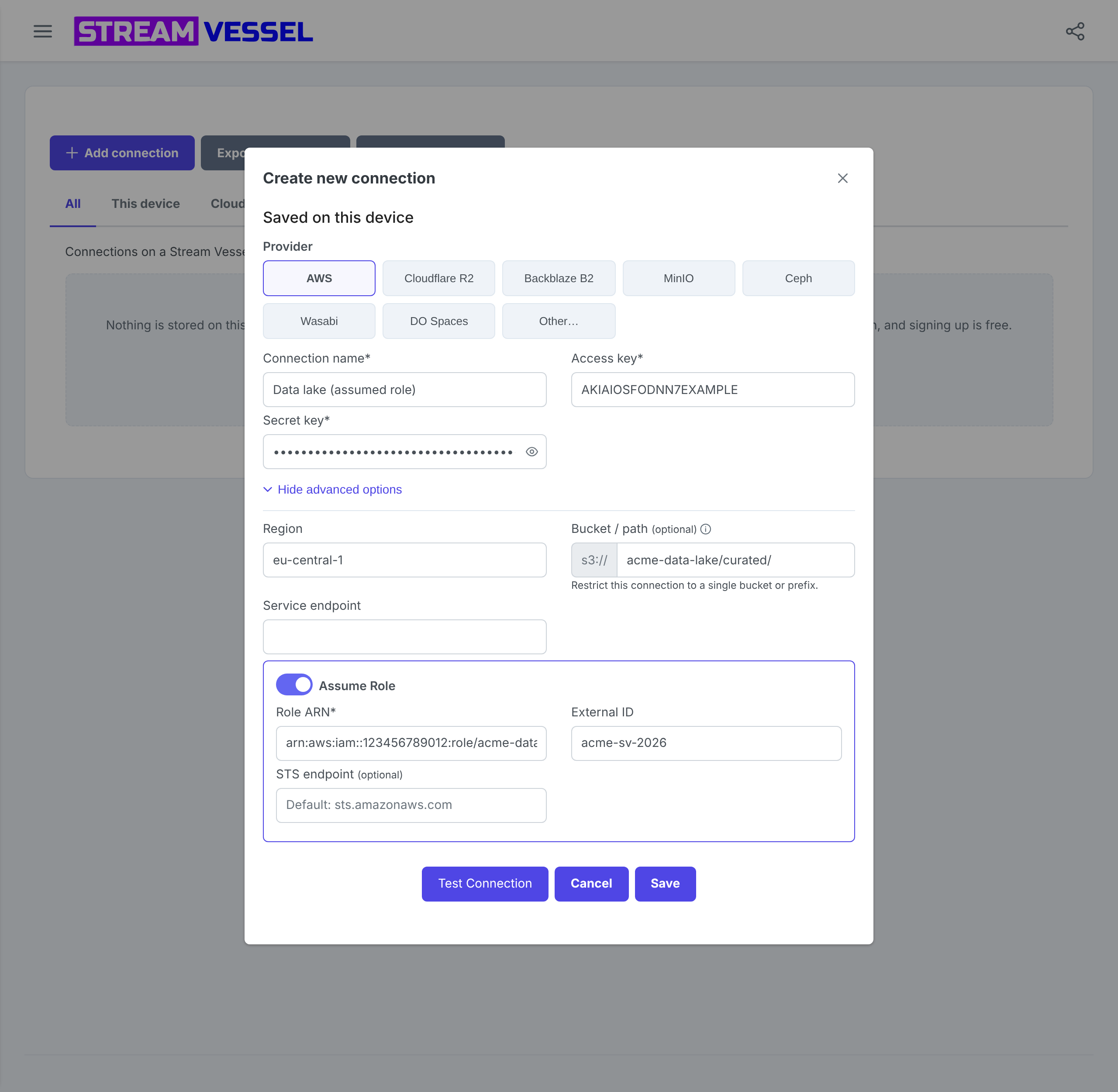
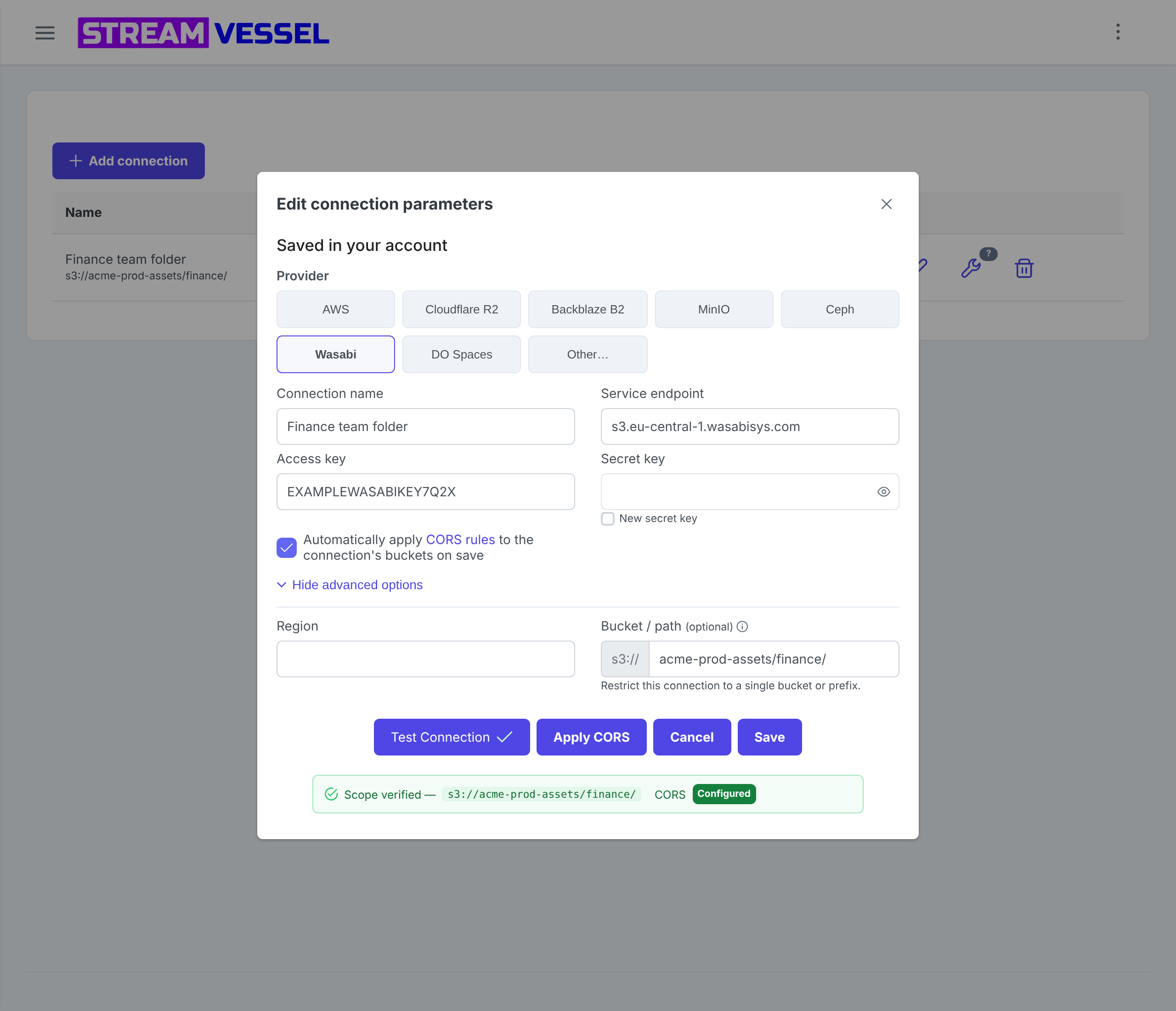
Bucket / path: limit a connection to one bucket or folder
Enter a bucket, as in acme-prod-assets, or a bucket and folder, as in
acme-prod-assets/finance/. The connection then opens straight at that place, its row on
the Connections page shows the s3:// path, and Stream Vessel refuses anything outside
it. Use it to:
-
Connect a key that cannot list buckets, such as a bucket-scoped R2 token or an
IAM user without
s3:ListAllMyBuckets. A scoped connection never asks for the bucket list, so these keys work. - Keep teams or projects apart, with one connection per folder, even when the key could reach more.
The rules, also shown by the ⓘ icon next to the field:
-
Bucket name: 3 to 63 characters; lowercase letters, digits, dots and hyphens;
not an IP address; no
... -
Path: optional; any characters except a backslash or a null character. A folder
ends with
/, and Stream Vessel adds the slash if you leave it out, sofinanceis saved asfinance/. -
Folder boundary: a connection on
projects/alpha/does not openprojects/alpha-secret/. - A scoped connection cannot create buckets, since it names exactly one.
On a connection saved in your account, CORS works as on any other, with one
difference to keep in mind: CORS is a setting of the whole bucket, not of a folder. Applying it
on a connection limited to acme-prod-assets/finance/ adds Stream Vessel’s rule to
the acme-prod-assets bucket; any other CORS rules on the bucket are kept.
A key limited to one folder often may not read or change bucket settings, so the status can show
Failed, even when the rule is already in place. Give the key
s3:GetBucketCORS and s3:PutBucketCORS on the bucket (see
the example policy), or ask the bucket’s administrator to add the rule.
Region
Stream Vessel finds the right region in most cases, so the field can stay empty. Fill it in when the test fails with a region error, or when your provider names a region that cannot be detected. On a connection saved in your account, a region AWS does not have is marked under the field with AWS has no region with this name. On this device, a successful test fills in the region the storage reported.
Custom AWS endpoints: FIPS, dual-stack and VPC
With the AWS tile selected, the advanced options include a Service endpoint field
that is otherwise hidden. Leave it empty to use the standard endpoint. Fill it in to send requests
to a FIPS endpoint, a dual-stack (IPv6) endpoint or a VPC interface endpoint, for example
s3-fips.us-east-1.amazonaws.com or s3.dualstack.eu-west-1.amazonaws.com. A
VPC interface endpoint is only reachable from inside that VPC, so it suits a connection on this
device on a computer connected to it.
Path-style addressing
S3 can address a bucket in two ways: virtual-hosted style, https://bucket.host/file,
and path style, https://host/bucket/file. AWS and most hosted providers use the first;
most self-hosted servers answer only the second.
- On this device: MinIO, Ceph and Other… use path style by default. For Other…, the Path-style bucket access checkbox lets you turn it off. An endpoint given as an IP address always needs path style.
- In your account: there is nothing to set. Stream Vessel uses path style for every endpoint other than AWS.
If a test on this device cannot reach the host and path style is off, the error offers Try path-style addressing, which turns it on and tests again.
Assume Role
Assume Role signs in with your keys and then switches to a role, so the connection works with the role’s temporary credentials. It is the standard way to reach S3 in another AWS account without a long-lived key there. It is available on connections saved on this device, for the AWS, MinIO, Ceph and Other… tiles. Turn on the Assume Role switch and fill in:
-
Role ARN: required for AWS, in the form
arn:aws:iam::123456789012:role/role-name. Required for Ceph, as created withradosgw-admin role create. Optional for MinIO, whose AssumeRole takes none and issues temporary credentials for your own user. -
External ID: optional. Enter it if the role’s trust policy requires
sts:ExternalId. -
STS endpoint: optional. Leave it empty to use
sts.amazonaws.comfor AWS, or the service endpoint itself for MinIO and Ceph. Set it for a regional, FIPS or VPC STS endpoint, or a server that answers STS elsewhere.
For AWS, the role needs a trust policy that lets your IAM user assume it, and your user needs
sts:AssumeRole on the role’s ARN. A connection that uses Assume Role cannot be moved to
your account yet.
Self-hosted and local-network storage
A connection saved on this device talks to your storage directly from your browser, so it reaches
whatever your computer can reach: MinIO on http://localhost:9000, a NAS at
192.168.1.20, or a server behind your VPN. If the server uses a self-signed
certificate, open its address in a browser tab and accept the certificate there first.
A connection saved in your account is used by Stream Vessel’s servers, so its endpoint must be
reachable on the public internet. An endpoint whose address is private is refused with
The service endpoint must be reachable on the public internet. Use an https://
endpoint there too: Stream Vessel Cloud runs on HTTPS and your browser transfers files to the
endpoint directly, and browsers block requests from an HTTPS page to http:// addresses.
CORS
Browsers only let a web page transfer files to your storage if the bucket’s CORS rules allow that page’s address. For connections in your account, keep Automatically apply CORS rules to the connection’s buckets on save ticked, and Stream Vessel adds the rules to each bucket when you save. When you edit a saved connection, Apply CORS applies them again (Save & apply CORS if you have changed something). Connections on this device do not need CORS at all.
The CORS status column of the test results tells you where each bucket stands. On a connection limited by Bucket / path, the status of its one bucket appears next to Scope verified:
- Configured: the rule is in place, and browser transfers work.
- No CORS support: the provider has no CORS API and allows every origin, so there is nothing to configure.
- Not configured: no matching rule yet. Press Apply CORS.
- Failed: Stream Vessel could not read or set the rule, so browser uploads may be blocked. Point at the status to see the provider’s reason. A key that may not change bucket settings is a common cause, and so is a storage that could not be reached. Fix the cause and press Apply CORS, or add the rules by hand as described in the CORS questions of the FAQ.
Providers can take up to 10 minutes to apply new CORS rules.
8. Connect a WebDAV server
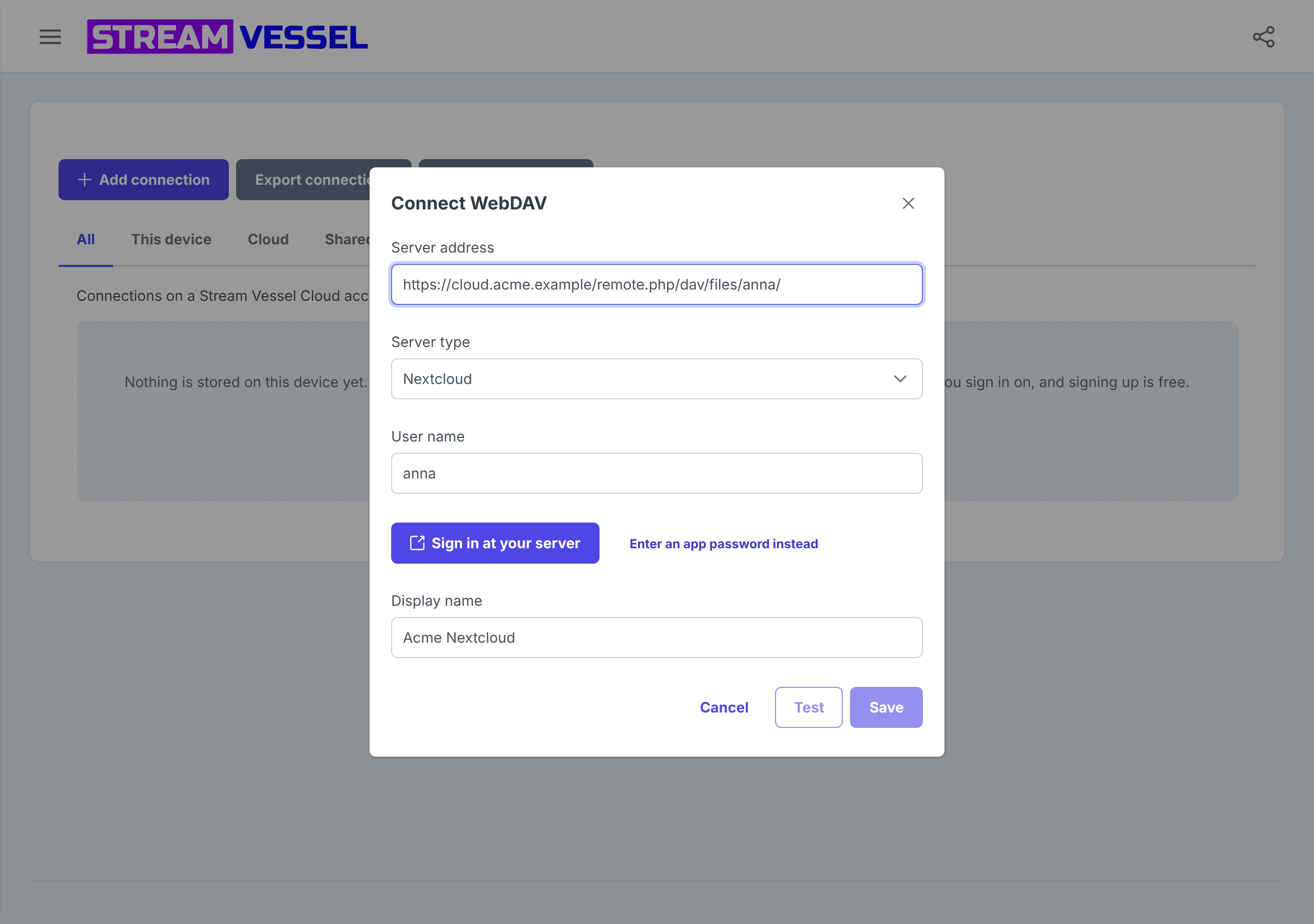
In the Chrome extension, choose WebDAV in the Add connection dialog. WebDAV connections are saved on this device. The Connect WebDAV form asks for:
-
Server address: the WebDAV URL, for example
https://cloud.example.com/remote.php/dav/files/<user>/for Nextcloud and ownCloud, orhttps://nas.example.com:5006/for Synology. - Server type: detected from the address and confirmed when you test: Nextcloud, ownCloud, Synology, Fastmail or Other WebDAV server. Change it if the guess is wrong.
- User name.
- App password or Password. For Nextcloud, press Sign in at your server instead: you approve Stream Vessel on your own server and an app password is created for this connection, with nothing to copy. Or choose Enter an app password instead.
- Display name: the name shown on the Connections page.
Prefer an app password wherever your server offers one: it can be revoked on its own without changing your account password. Nextcloud and ownCloud create them under Settings, then Security; Fastmail under Settings, then Privacy & Security, then App passwords. Synology DSM has no app passwords, so the form warns that your account password will be stored on this device; consider a dedicated DSM account.
Press Test. Connected. The server answered. confirms it works, and only then does Save become available.
9. Edit, move, export and delete connections
Each row on the Connections page has icons to open the connection, share it, edit it, run maintenance checks and delete it. In the Chrome extension, the All, This device and Cloud tabs filter the list by where connections are saved.
Edit a connection
Press the pencil icon. The form opens with the saved values and tests the connection right away, so you see at once whether it still works. In the Chrome extension, if Chrome no longer lets Stream Vessel reach a connection’s host, the form says Stream Vessel needs permission to reach this storage instead; press Grant access and the test runs. On a connection in your account, the secret key is hidden and locked; tick New secret key to replace it, for example after rotating keys. On a WebDAV connection, leave the password empty to keep the saved one.
Move a connection to your account
When you are signed in to the Chrome extension, a connection on this device shows a cloud icon, Move to your account. Stream Vessel first checks that its servers can reach the storage, then creates the connection in your account and removes the copy from this device. After that you can use it from any device, share it and give AI agents access to it. A connection that uses Assume Role cannot be moved yet; its icon says Cannot move to your account and names the setting.
Export and import connections
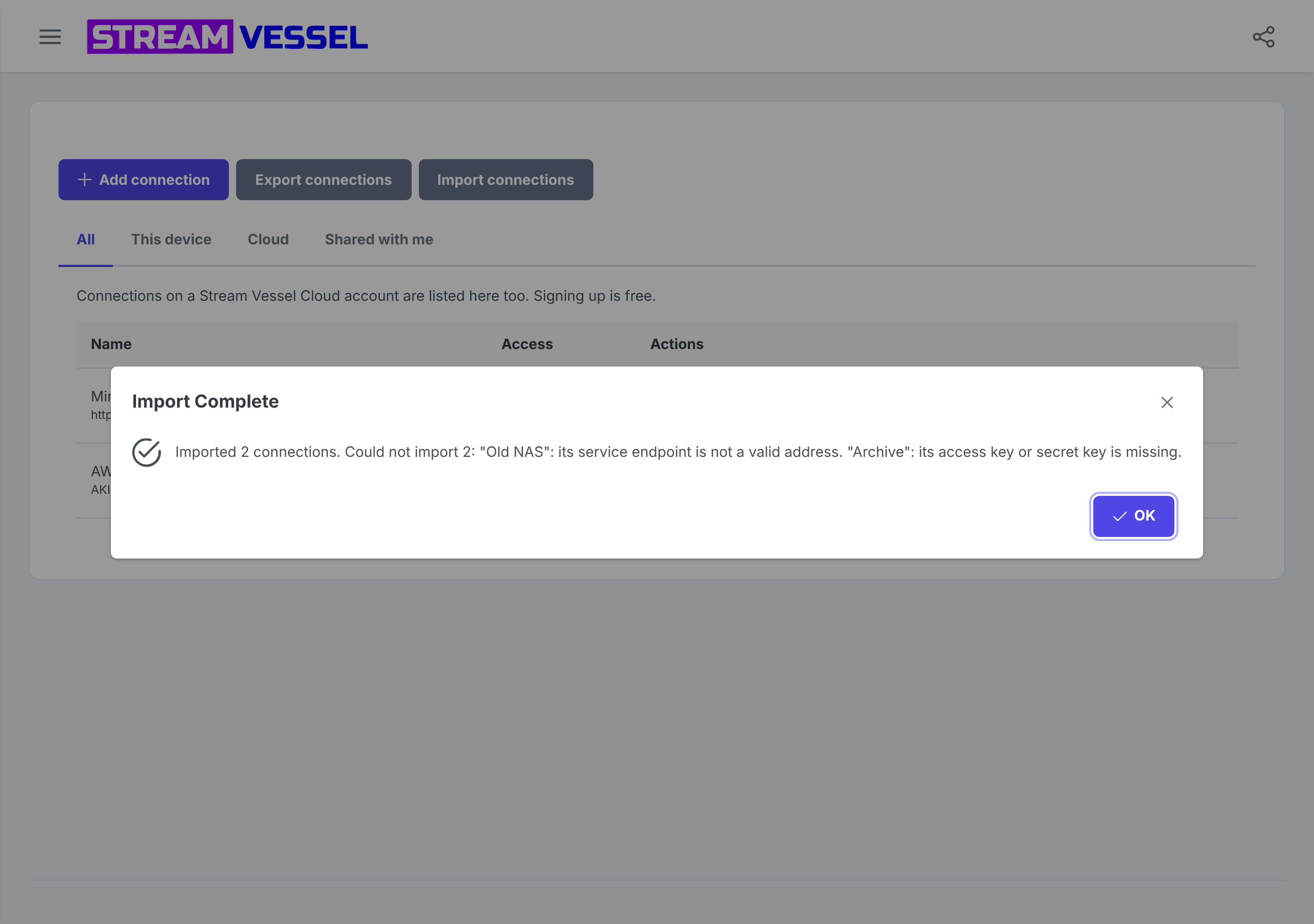
Export connections on the Connections page of the Chrome extension saves the S3 connections on this device to a JSON file. Import connections adds the connections in such a file to this device, which is handy when you move to a new computer. Each entry is checked like the form checks it; when one cannot be imported, the summary names it and says why, and the rest are imported anyway.
An export file holds your access keys and secret keys in plain text. Store it like a password, delete it once you have imported it, and never send it to anyone. To give someone access, use sharing instead.
Delete a connection
Press the trash icon and confirm. The connection and its saved keys are removed from Stream Vessel. Your buckets and files are not touched, and the keys keep working at your provider until you revoke them there.
10. A least-privilege key for AWS S3
This example IAM policy lets a key browse, download, upload and delete in one bucket,
acme-prod-assets, and nothing else. Because it does not allow listing all buckets, pair
it with Bucket / path set to acme-prod-assets.
{
  "Version": "2012-10-17",
  "Statement": [
    {
      "Sid": "SeeTheBucket",
      "Effect": "Allow",
      "Action": ["s3:ListBucket", "s3:GetBucketLocation"],
      "Resource": "arn:aws:s3:::acme-prod-assets"
    },
    {
      "Sid": "WorkWithFiles",
      "Effect": "Allow",
      "Action": ["s3:GetObject", "s3:PutObject", "s3:DeleteObject", "s3:AbortMultipartUpload"],
      "Resource": "arn:aws:s3:::acme-prod-assets/*"
    }
  ]
}
-
Read-only: remove
s3:PutObject,s3:DeleteObjectands3:AbortMultipartUpload. -
One folder: move
s3:ListBucketinto a statement of its own with the condition"StringLike": { "s3:prefix": "finance/*" }, change the second statement’s resource toarn:aws:s3:::acme-prod-assets/finance/*, and set Bucket / path toacme-prod-assets/finance/. -
See all your buckets: add
s3:ListAllMyBucketson*, and leave Bucket / path empty. -
Automatic CORS for a connection in your account: add
s3:GetBucketCORSands3:PutBucketCORSon the bucket, or set the rules yourself and untick the CORS option.
11. Troubleshooting
The access key is rejected
Check that you copied both halves of the key, without spaces. If the AWS tile was selected only because the form opened on it, the test asks Is this an AWS key?: a key from MinIO, R2, Wasabi or another provider needs that provider’s tile and its endpoint.
“These keys may only reach one bucket”
The key was refused when Stream Vessel asked for the list of buckets. That is normal for a bucket-scoped token. Press Enter bucket name, type the bucket in Bucket / path and test again.
“Stream Vessel couldn’t reach this host”
The usual causes, in order:
- The address or port is wrong, or the server is not running.
-
The server needs
http://where you enteredhttps://, or the reverse. - Its certificate is self-signed or not trusted. Open the address in a tab and accept it there.
- A VPN or firewall is in the way, or you are offline.
- The server answers only path-style requests. Press Try path-style addressing if it is offered.
A region error
The storage expects requests signed for a different region, and the error usually names it. Enter that region under Show advanced options, or check that the endpoint belongs to the region your bucket is in.
“The service endpoint must be reachable on the public internet”
The endpoint resolves to a private address, which a connection in your account cannot use. Save the connection on this device in the Chrome extension, or publish the storage at a public address.
Buckets list, but files do not open or upload in Stream Vessel Cloud
The bucket’s CORS rules are probably missing. Edit the connection and press Apply CORS, or add the rules by hand if your provider does not support the CORS API. Allow up to 10 minutes for the provider to apply them.
Still stuck?
For a connection on this device in the Chrome extension, after two different failed tests, the form offers Report this problem. It sends us the technical details of the failure, never your secret key, and we reply by email with what to change. You can also write to [email protected] with your provider’s name and the error message.